How to use Arrive
Get started with Arrive in just a few simple steps
-
Download and Install
If you've already installed Arrive, skip this step!
Note: Arrive requires Overwolf. If you don't have Overwolf, then it will be installed automatically with Arrive.
-
Select Your Games and Servers
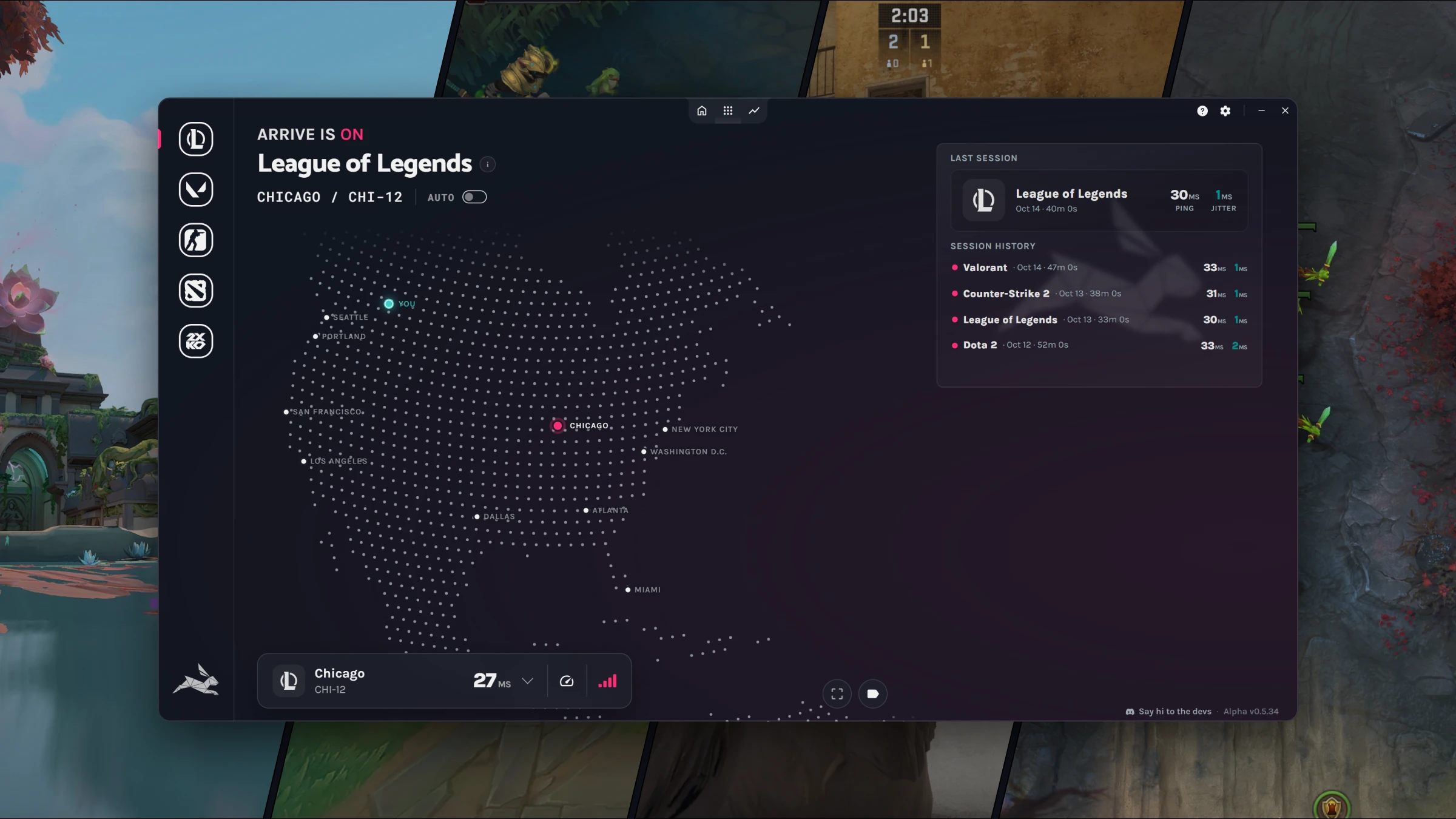
Pick a game from the bar on the left, then click Enable Arrive for [game] at the bottom of the map.
To choose a route, click a city on the map and pick one of its servers. The city closest to the game server you play on is usually the best start. For League of Legends you can also turn on Auto, and Arrive picks the best route for your connection.
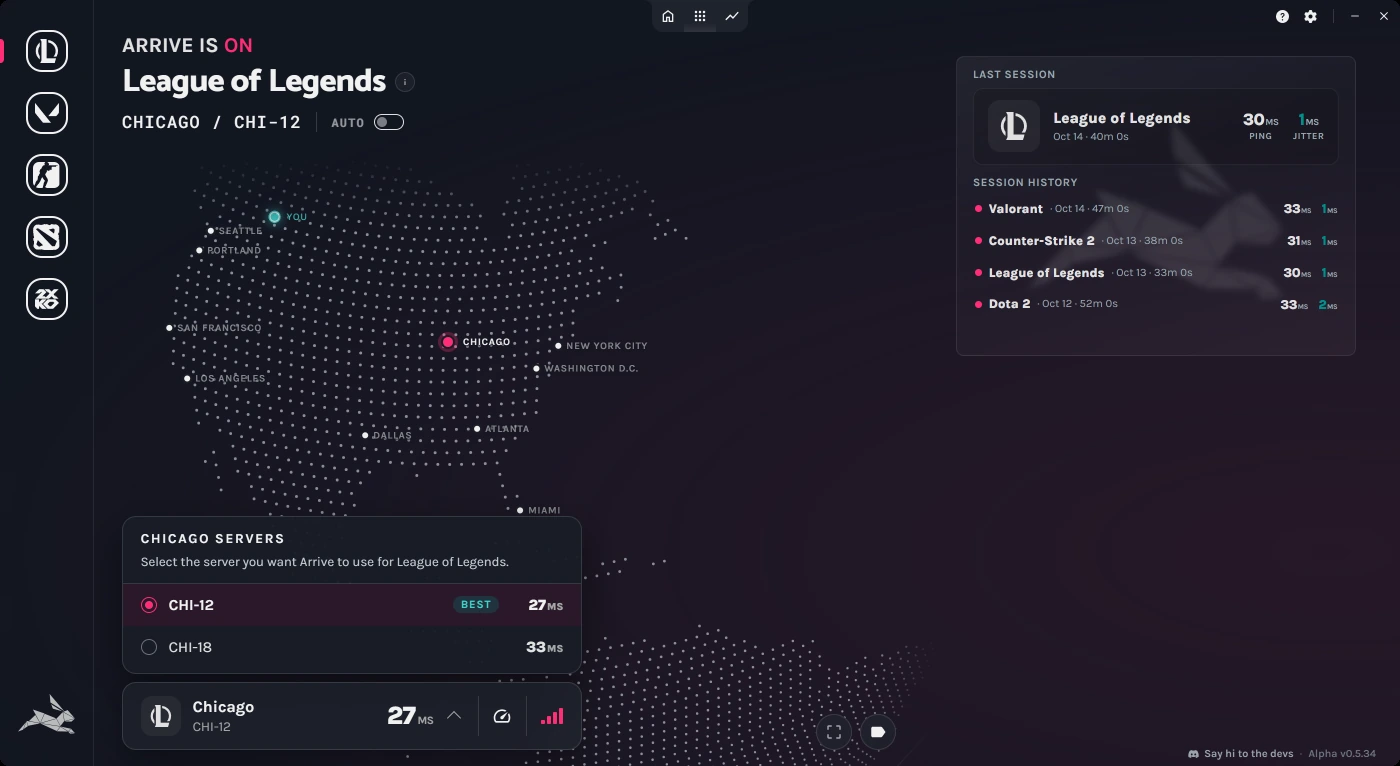
Each game has a few quirks of its own, like matching your in-game region. Pick your game for its setup tips:
-
Start Your Game
Once Arrive is configured, start your game and the app will begin optimizing your connection routing in the background.
You can monitor your connection quality and see how Arrive is working for your specific setup. Feel free to experiment with the server select if you're not seeing satisfying results on auto-select!
-
Control Arrive Anytime
By default you can toggle the in-game Arrive window with
Ctrl + P(you can change this binding in the settings).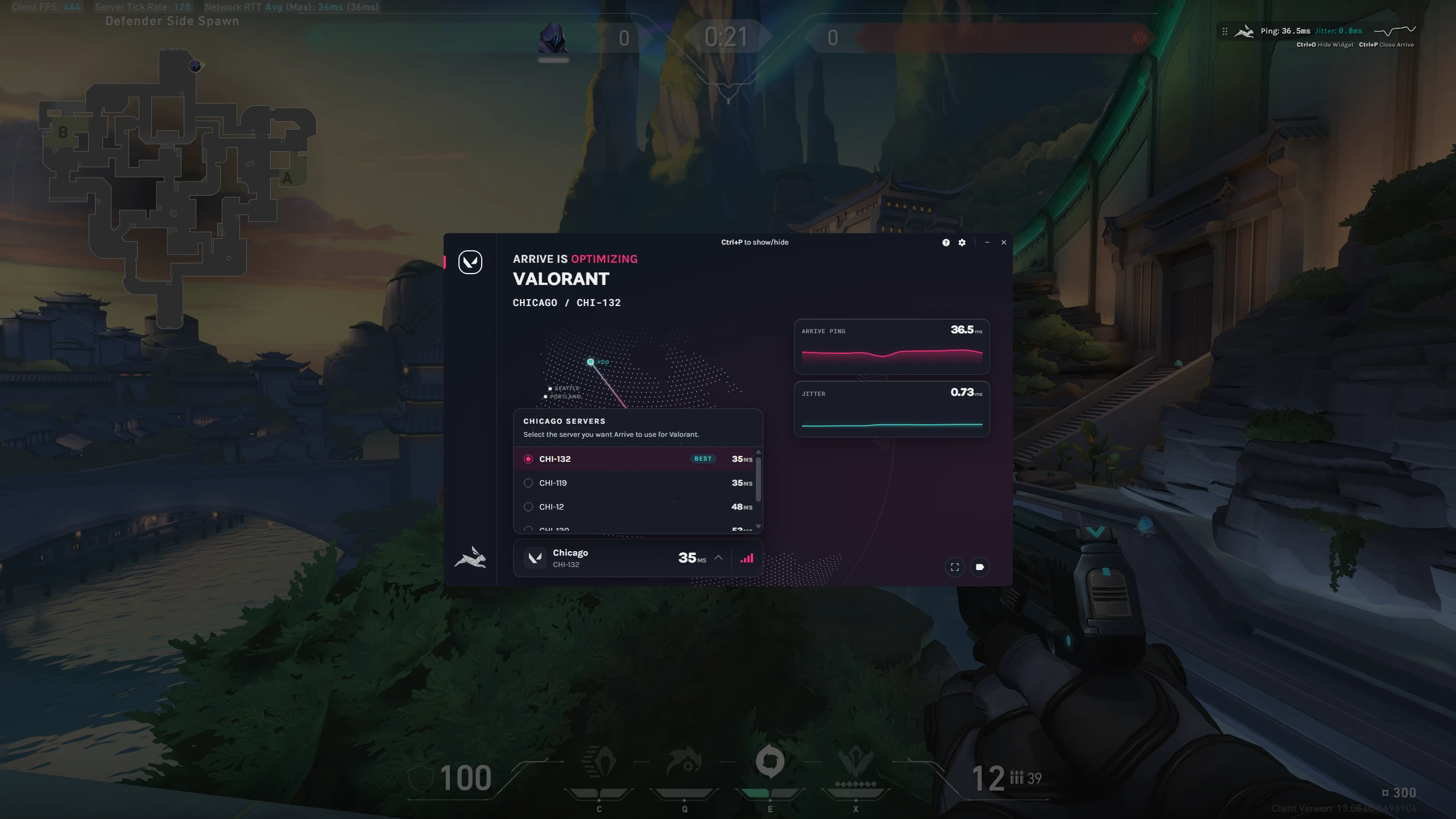
You can start or stop Arrive mid-game without restarting, and you can enable or disable it for specific games. This gives you the flexibility to test different configurations and find what works best for your connection.
In-Game Widget
The Arrive Widget displays your Arrive ping and jitter at a glance. PressCtrl + Oto hide or show it, andCtrl + Pto reposition it.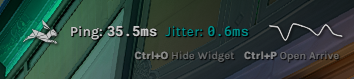
If Arrive doesn't work for you today, don't give up!
Arrive won't work for everyone. Here's why:
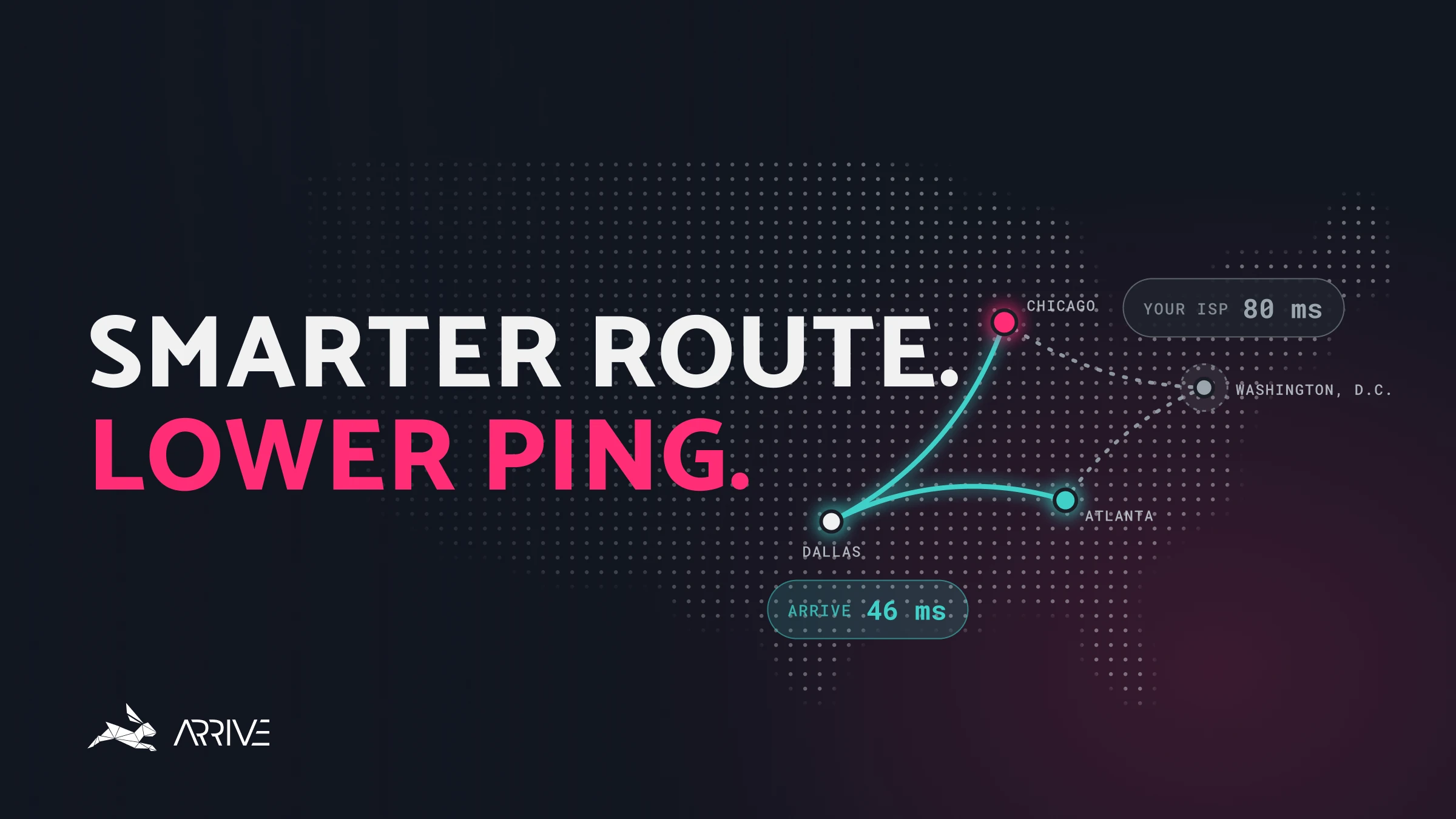
The internet wasn't designed with real-time gaming in mind, and every connection is unique. Your home network, ISP, and routing paths all affect your personal experience and performance differently. How Arrive Reduces Your Ping explains why it helps some connections more than others.
That said, we are constantly expanding our network, so if you aren't seeing an improvement for your gaming latency with Arrive, then check back in a few months as we add new servers and routes.
We're doing our best!
About our Team
The Arrive team is just a bunch of software dev nerds who love online gaming, hate lag, and are doing the best we can to make this tech work for as many users as possible ❤️.