How to Fix Lag in League of Legends
Late Flashes, missed Smites, skillshots that hit you anyway? Here's what's behind your League lag, and how to fix it.
Riot's own network engineers put it well: League is "not a game of seconds, but of milliseconds." A video can buffer ahead to hide a slow connection. A match can't, so every delay shows up on screen, usually in the play that mattered.
"Lag" is the word for all of it, but the cause can be your connection, the route to Riot, or your own PC. Each has its own fix, so start by finding out which one you're dealing with.
Where is your League lag coming from?
| What you see | Likely cause | Fix it in |
|---|---|---|
| Everything you do lands a little late, all game long | High ping | The route to Riot |
| Champions dart around, skillshots teleport, "Attempting to Reconnect" | Packet loss or lag spikes | Your connection at home |
| The game stutters when effects fill the screen | Low FPS (your PC) | Your video settings |
- Ping, also called latency or round-trip time (RTT), is how long a command takes to reach Riot's server and get an answer back, in milliseconds. Most of it comes from distance.
- Jitter is how much your ping wobbles. A steady 60 ms beats a ping that hops between 30 and 120.
- Packet loss is data that never arrives, so the server never hears about a click.
Why lag hurts some champions more
Some plays can absorb 80 ms of ping and some can't. Last hits, Flash dodges, Smite fights and quick combos all depend on your input reaching the server at the right moment.
Riot has even changed champions because of it. In patch 7.8 it adjusted Karthus's and Ryze's Q abilities, saying their quick combos created a large gap between players on low and high ping. If you play mechanics-heavy champions, a steady connection matters more for you than for most.
1. Put your ping on screen
Press Ctrl+F in a game to show your ping and FPS in the top-right corner. Press it again to hide them. If it doesn't work, check Toggle FPS Display under Hotkeys → Display in the settings.
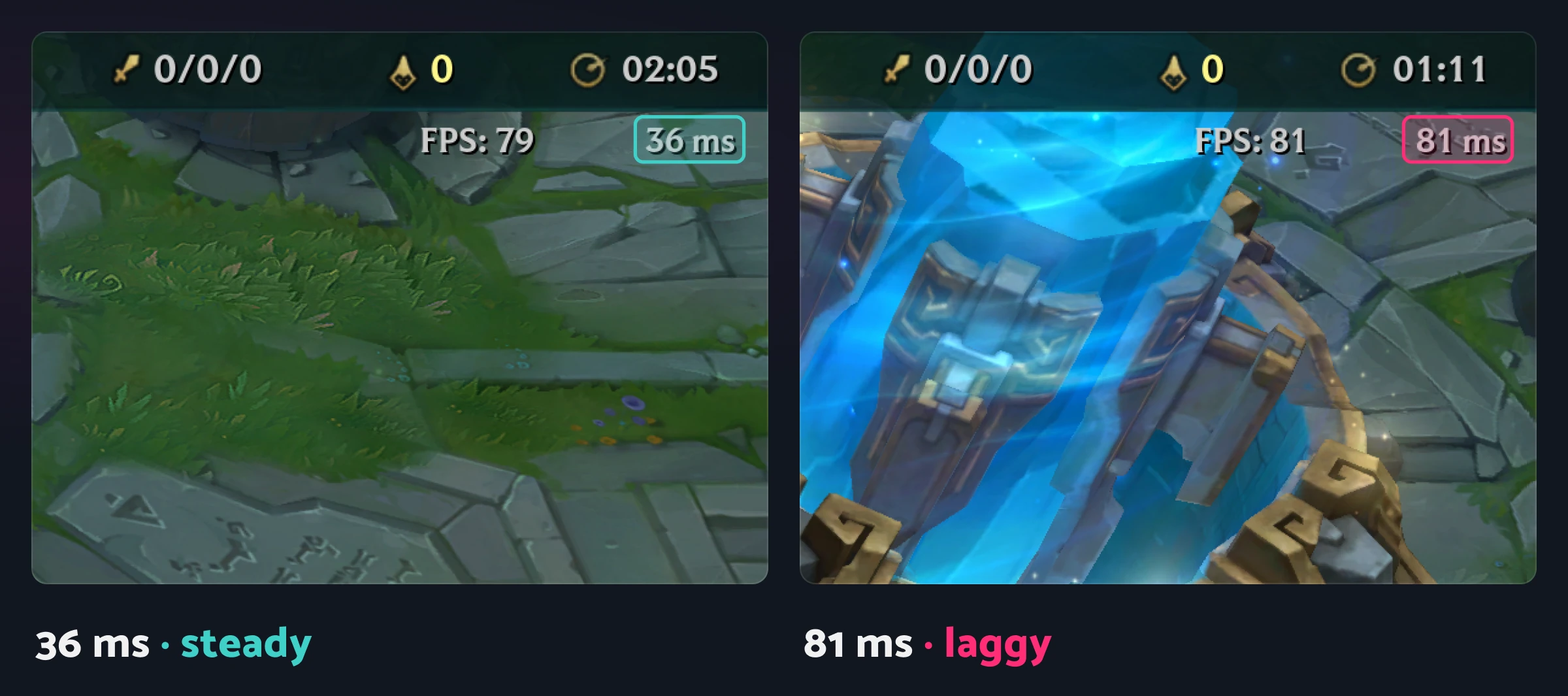
Play a game of ARAM and watch the numbers. Riot doesn't give a target, but this is how ping tends to feel:
Riot’s aim for NA80ms
- 0–50msExcellent
- 50–80msPlays well
- 80–100msYou start to notice it
- 100+msDodges and last hits suffer
- Lag spikes: if the number jumps around, you have jitter or packet loss, not just distance.
- FPS: at or above your monitor's refresh rate, even in teamfights.
Seeing Attempting to Reconnect? That's packet loss, so start with step 2.
2. Clean up your connection
These follow Riot's own troubleshooting order, and they fix most packet loss and lag spikes.
- Plug in a cable. Wi-Fi is the most common source of lost packets. If a cable can't reach, try a powerline adapter.
- Stop what's sharing your connection. Game updates, Steam downloads, torrents and streams can all fill your connection. Uploads are the worst offenders; our article on beating buffer bloat explains why.
- Turn off Windows Delivery Optimization. It lets Windows share updates with other PCs over your connection in the background. Find it under Settings → Windows Update → Advanced options.
- Update your network driver, and restart your router while you're at it.
- Turn off your VPN or proxy. Riot advises against both. They add an extra stop on the way to its servers.
3. Know where your League server is
You can't choose your server in League. Your Riot account belongs to one region, and every game you play runs on that region's server. These are where the North American and European ones are:
| Region | Server location |
|---|---|
| North America (NA) | Chicago |
| Europe West (EUW) | Amsterdam |
| Europe Nordic & East (EUNE) | Frankfurt |
When Riot moved North America's server to Chicago in 2015, it aimed for almost every player on the continent to be under 80 ms. If you live further away, some distance is unavoidable. Moving your account to another region costs RP and resets your ranked placements, so it's only worth it if you've actually moved.
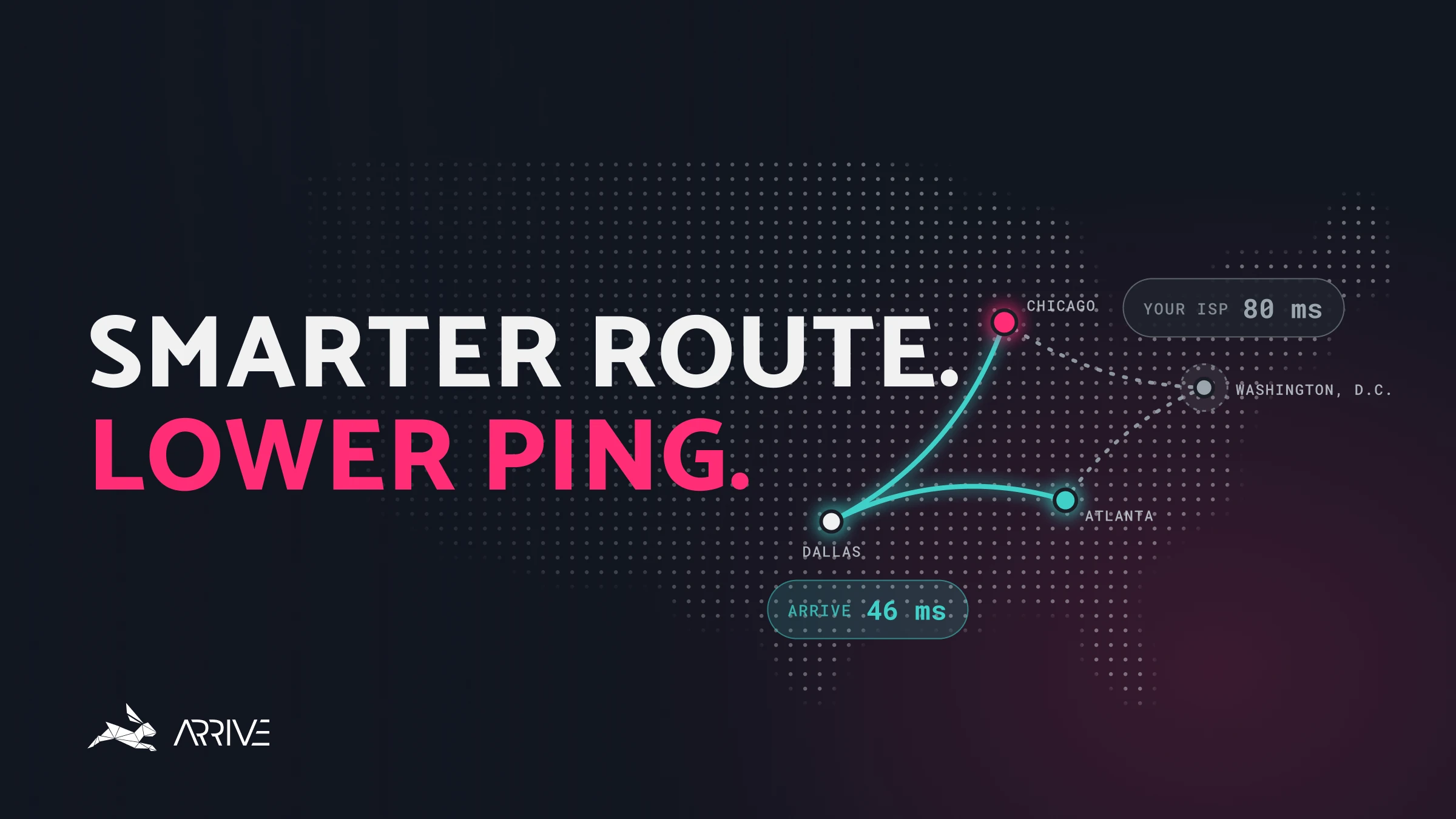
What you can change is how your traffic gets to Riot. Riot runs its own network to carry League traffic, and your internet provider decides how you reach it. That first stretch is often the slow part.
- Your PCYour internet provider carries you to the first stop
- Arrive server If you use ArriveTakes the quickest path it knows from here
- Riot’s networkWhere your traffic joins Riot’s own backbone
- League serverYour region’s server, where the match runs
4. Lift your FPS
Low FPS isn't a network problem, but it feels like lag. Press Esc in a game and open Video:
- For a quick fix, drag the Graphics slider toward Increased Performance. It lowers everything at once.
- To tune it yourself, lower Shadow Quality first, then untick Anti-Aliasing under Advanced. Riot suggests turning both off to see how much they cost you.
- Then lower Character Quality, Effects Quality and Environment Quality, and tick Hide eye candy to drop decorative effects.
- Set Frame Rate Cap (under Advanced) to at least your monitor's refresh rate.
- Leave Wait for Vertical Sync unticked if you notice input delay, and expect some screen tearing.
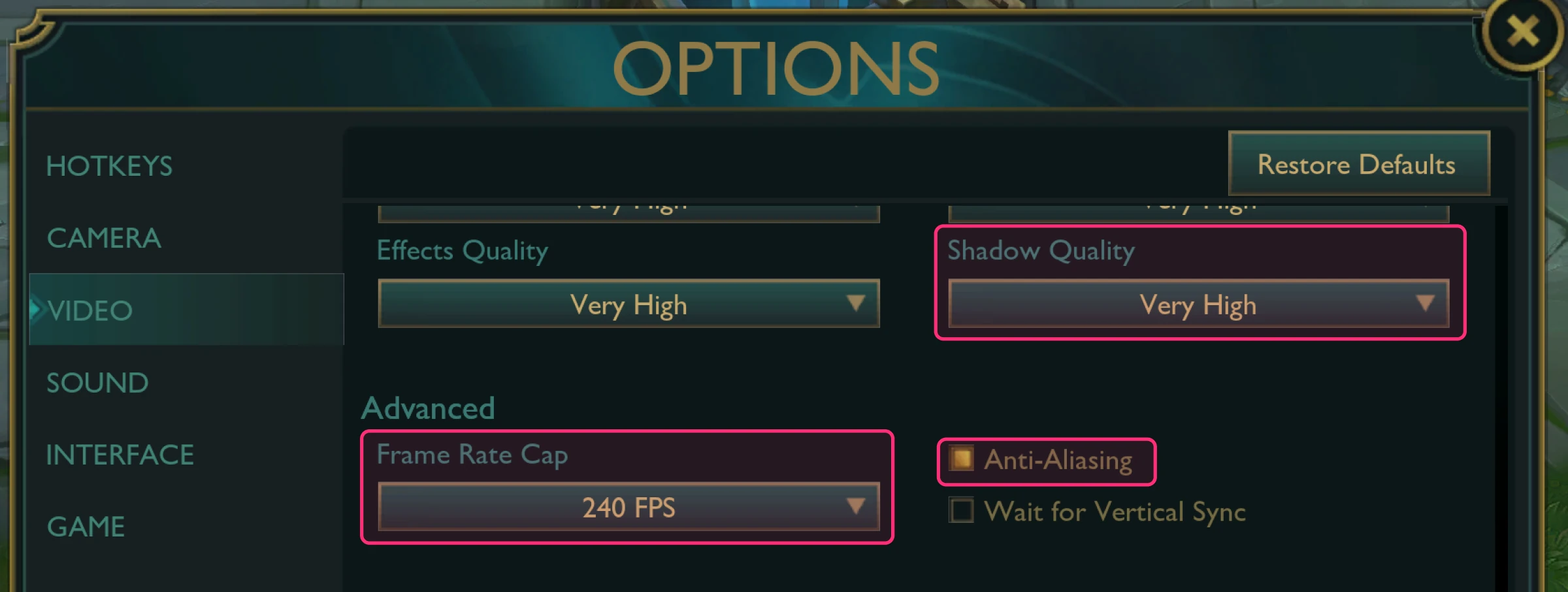
Test each change in a Custom Game, where nothing is at stake. On a laptop, play with the charger plugged in.
5. Fix the route with Arrive
If you're wired in and your ping is still higher than it should be, the slow part is probably the path between your internet provider and Riot's network. Providers route traffic in ways that suit their costs, and those routes are often not the fastest ones.
Arrive works on that path. It's a free Windows app that carries your League traffic through our own network of datacenters to find a quicker, steadier route to Riot. It isn't a VPN, and it currently covers North America and Europe (in alpha).
- Install Arrive and select League of Legends.
- Switch on Enable League of Legends, then turn on Auto and Arrive picks the best route for your connection. Prefer to choose? Turn Auto off and pick a server yourself: Chicago for NA, Amsterdam for EUW, Frankfurt for EUNE.
- Turn Arrive ON.
- Launch League and play as normal.
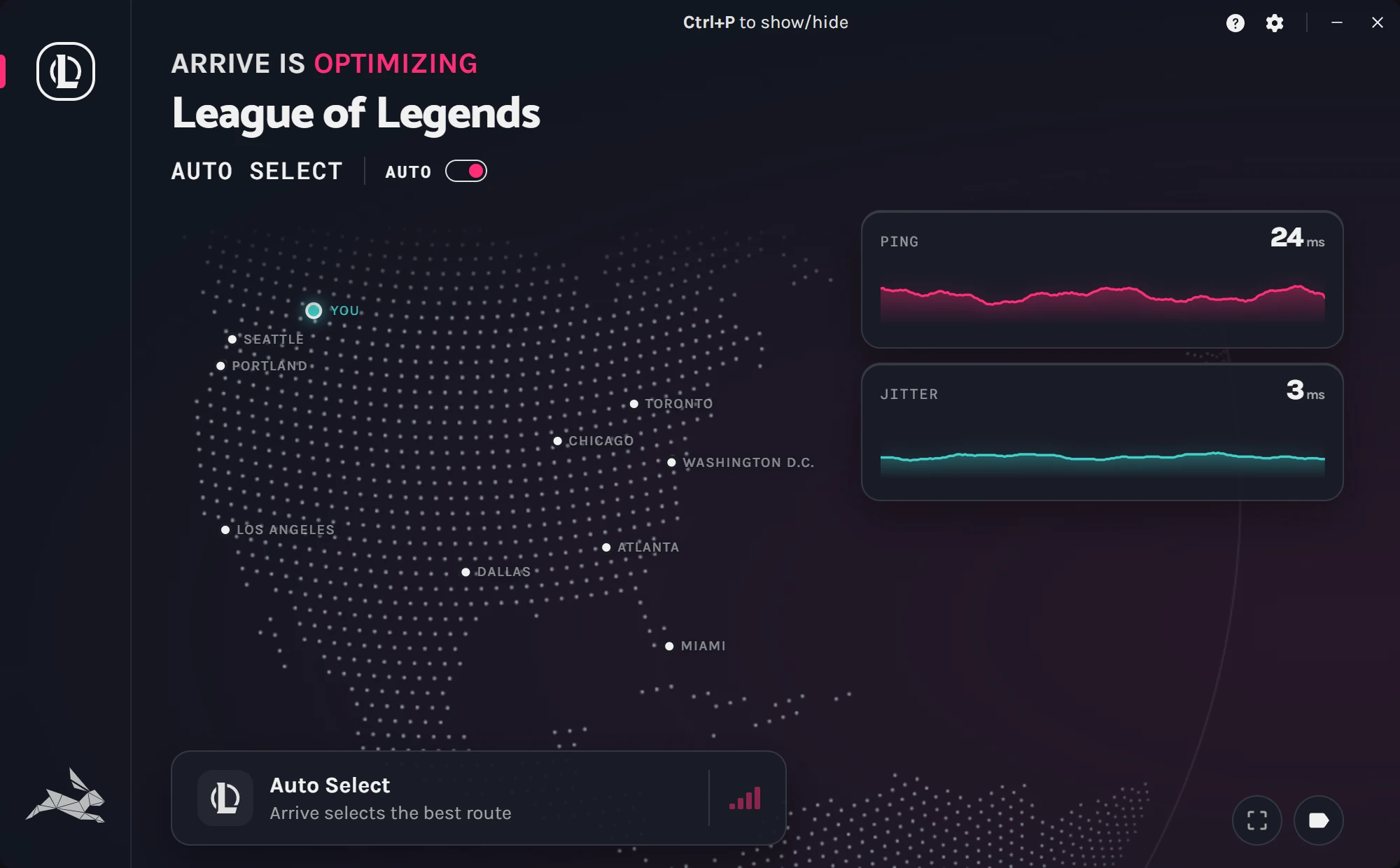
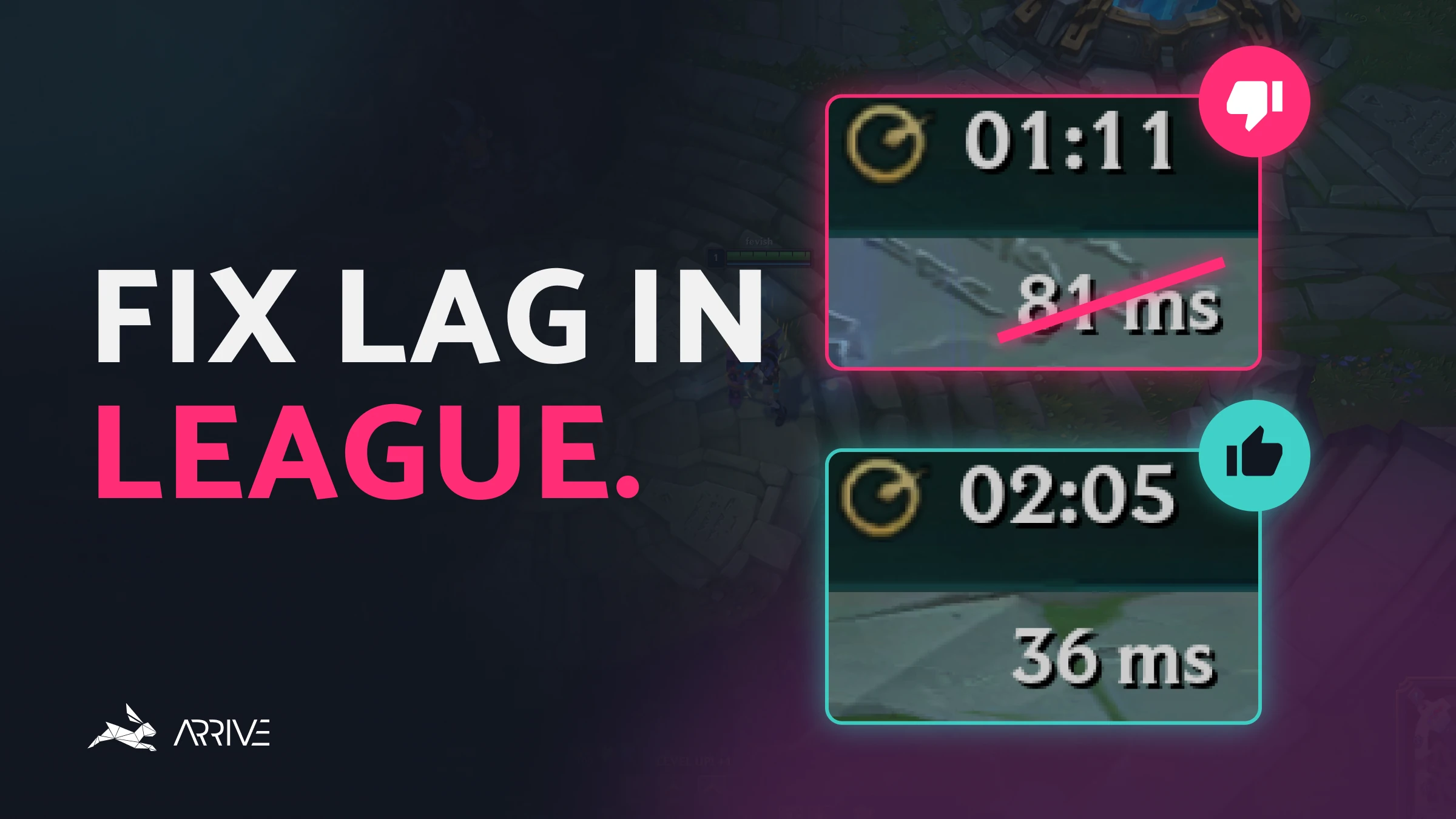
See the difference in League's own numbers. Arrive reads League's in-game ping, so its overlay (Ctrl+P) shows the same number you get with Ctrl+F. Play one ARAM with Arrive off and one with it on, and compare.
Arrive won't lower everyone's ping. If your provider already takes a good route to Riot, there's nothing for us to improve on, and you'll see the same number. Switch it off and check again in a few months, as our network keeps growing.
League of Legends lag FAQ
What is a good ping for League of Legends?
Under 50 ms is excellent, and anything under 80 ms plays well for most champions. A steady ping matters as much as a low one, so watch for lag spikes too.
Why is my League ping high when my internet is fast?
Speed and ping measure different things. League sends very little data, so a faster plan doesn't help if your Wi-Fi drops packets or your provider takes the long way to Riot. Check your ping with Ctrl+F, not your download speed.
Can I change my League of Legends server?
Not within a region. Your account plays on its region's server, and the only way to change that is a paid region transfer, which resets your ranked placements. You can still change the route your traffic takes to get there.
What does "Attempting to Reconnect" mean?
The game has stopped receiving data from the server and is catching up. While it does, your champion may freeze, or keep moving while everything else stands still. It almost always comes from packet loss on Wi-Fi or a busy home connection, so work through step 2.
Will a VPN fix League lag?
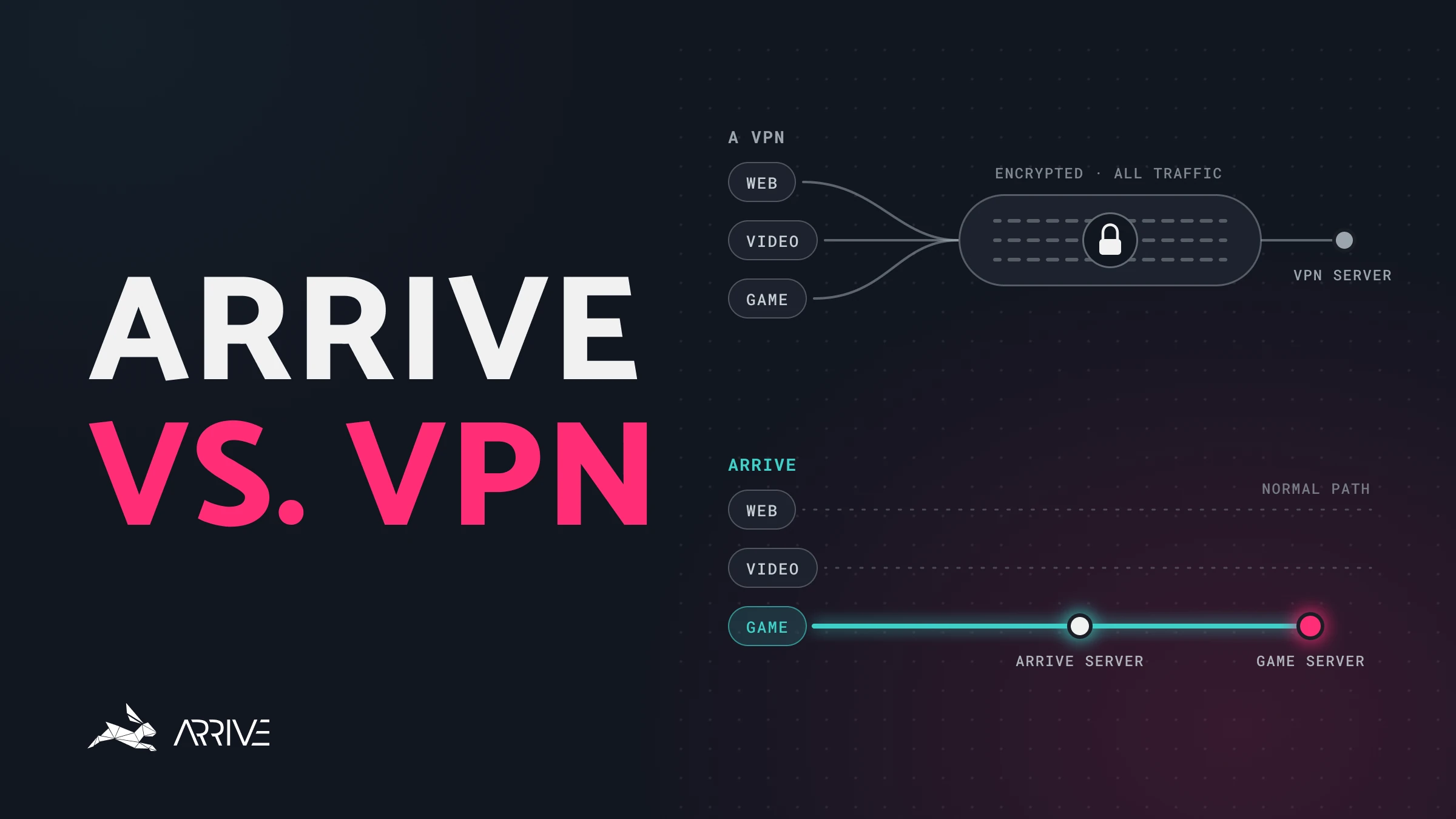
Usually not, and Riot recommends against using one. A VPN sends all of your traffic through an extra server, which tends to add distance. Arrive handles only your game traffic and looks for a faster path to Riot instead; here's how the two differ.
Still lagging?
Ask us in the Arrive Discord, or read how to use Arrive for a full tour of the app. We also have guides for the other games Arrive supports.