How to Fix Lag in CS2
Dying behind walls, rubber-banding, shots that don't register? CS2 can tell you exactly why. Here's how to read it and fix it.
You swing first, you fire first, and the kill feed says you lost. In CS2, the gap between a clean peek and a death behind a wall is often a few dozen milliseconds of lag.
The good news: CS2 is unusually honest about what's wrong. It can show you your ping, your missed ticks and your frame times live, so you don't have to guess which fix you need.
Is it ping, packet loss or FPS?
| What happens | What it usually is | Go to |
|---|---|---|
| You die behind walls, enemies seem to see you first | High ping | Set your matchmaking ping |
| Rubber-banding, hitches, shots that don't register, a red network warning | Packet loss or jitter | Fix your connection |
| The picture stutters or freezes for a moment, smokes tank your frames | Low FPS or frame time spikes (your PC) | Smooth out your FPS |
- Ping, or round-trip time (RTT), is how long your shot takes to reach the server and the answer to come back.
- Jitter is how much that time varies. Uneven timing makes the game miss updates even when nothing is lost.
- Packet loss is data that never arrives. CS2 reports both as missed ticks: moments when the server or your PC didn't get an update in time.
1. Turn on CS2's telemetry
CS2 has a built-in network display. Go to Settings → Game → Telemetry and set each of these to Always while you troubleshoot (or If conditions are poor to see them only when something's wrong):
- Show frame time and FPS: your average FPS, and your worst recent frame time.
- Show ping: your current ping to the server.
- Show network problems: the share of ticks missed because of loss or jitter, with an up arrow for your PC to the server and a down arrow for the server to you.
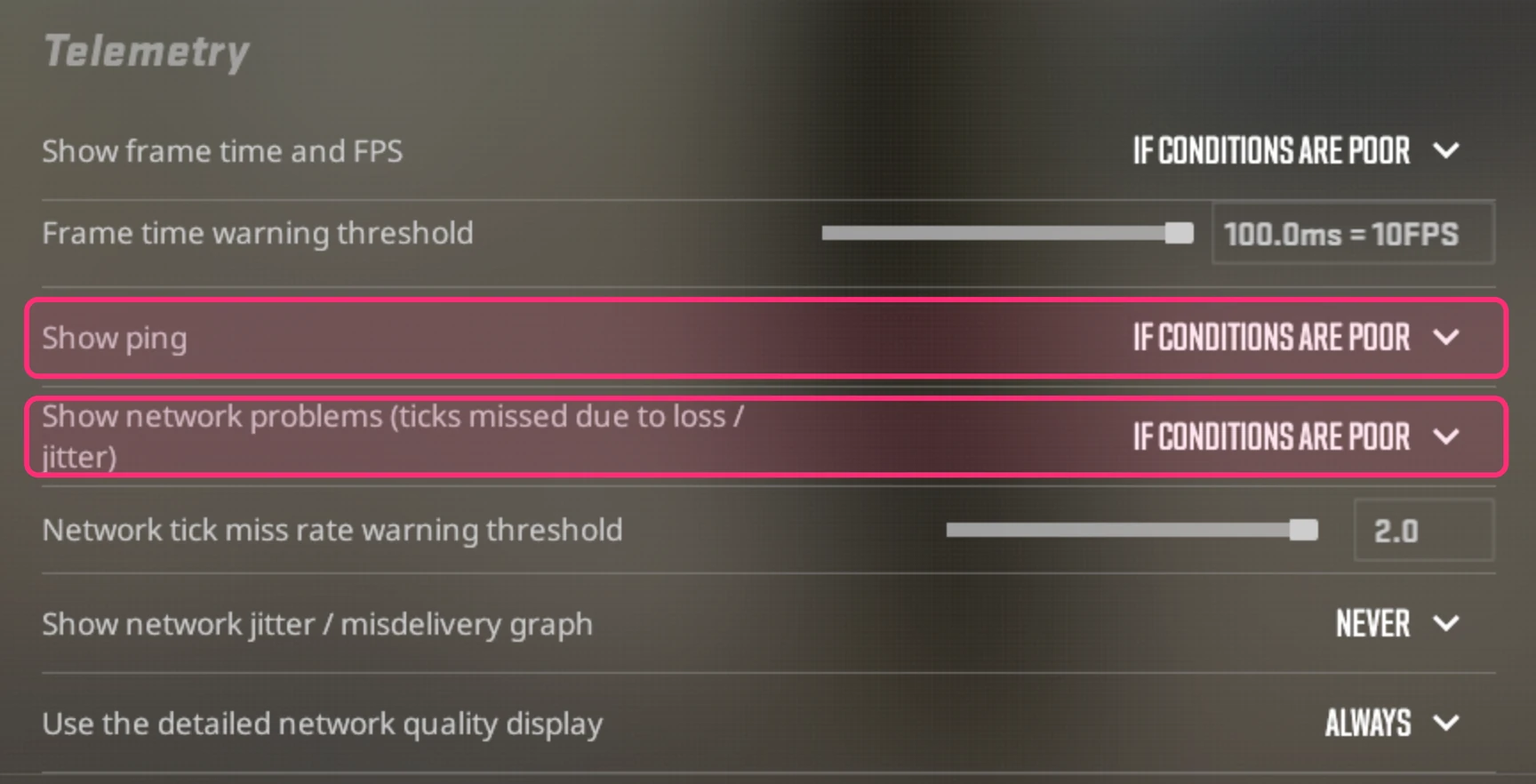
For more detail, turn on Use the detailed network quality display, which spells out ping, missed ticks, loss and peak jitter as numbers. Valve suggests setting the Network tick miss rate warning threshold to between 0.1 and 0.5%.
Then play a Deathmatch and read the numbers:
CS2’s warning100ms
- 0–40msCrisp: what you want for duels
- 40–70msFine for most players
- 70–100msPeeks and wide swings start to feel late
- 100+msYou're fighting the lag
- Missed ticks should stay at or near 0%. If the up arrow climbs, the problem is your upload; if the down arrow climbs, it's on the way back to you.
- Frame time spikes with steady network numbers mean the hitch is your PC, not your connection.
2. Fix your connection
Loss and jitter almost always start between your PC and your internet provider.
- Get off Wi-Fi. A cable is the single biggest fix for missed ticks. A powerline adapter is the fallback.
- Quiet the rest of the house. Uploads, cloud backups, Steam downloads and streams on other devices all compete with your game. The buffer bloat explainer shows why uploads hurt most.
- Restart your modem and router.
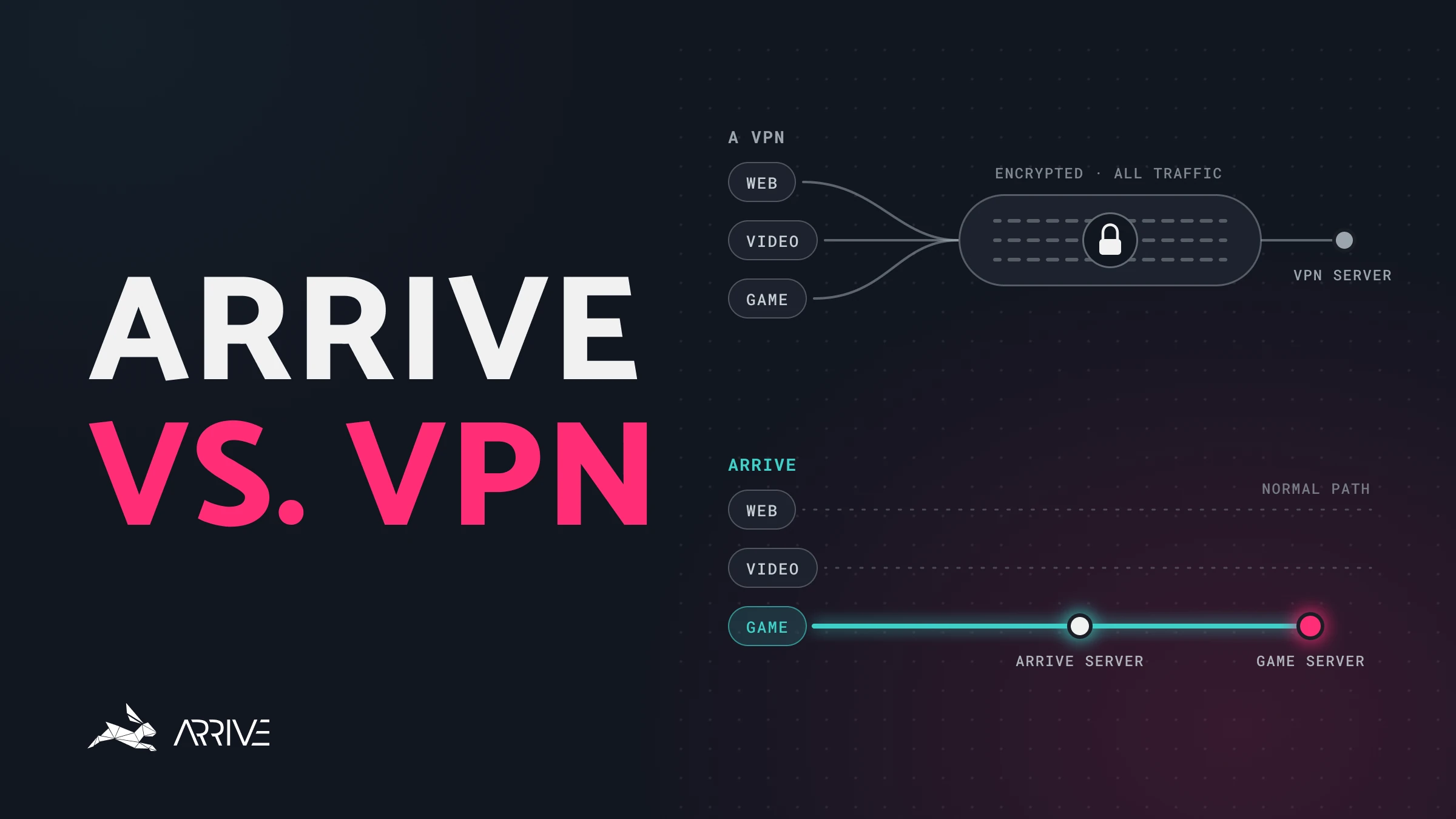
- Turn off your VPN. It's one more stop between you and Valve.
If you still see occasional loss or jitter spikes, CS2 can hide them for you. Buffering to smooth over packet loss / jitter (in Settings → Game) can be set to None, 1 tick or 2 ticks. Each tick of buffering makes the game steadier and adds a little delay, so leave it on None if your connection is clean.

3. Set your Max Acceptable Matchmaking Ping
There's no region picker in official CS2 matchmaking. Your control is Max Acceptable Matchmaking Ping, in Settings → Game. It runs from 25 to 350 ms, and the default is 150.
Below the slider, CS2 lists the nearest official datacenters with your ping to each, plus a button to measure them again. Lowering the limit tells matchmaking to stick to the datacenters under it. If none are under your limit, you'll still be placed on the nearest one, even if it's over.

Set it just above your ping to your closest one or two datacenters. Queues can take a little longer, and your matches will play on the servers that suit you best.
4. How CS2 actually connects you
You never connect to an official CS2 server directly. Your game joins Valve's relay network, the Steam Datagram Relay (SDR), at a relay near you, and Valve carries the traffic the rest of the way to the match server.
- Your PCYour internet provider carries you to the first stop
- Arrive server If you use ArriveTakes the quickest path it knows from here
- Valve’s relayWhere your traffic joins Valve’s network
- CS2 serverThe datacenter your match runs in
That's also why switching routes in the middle of a match is a bad idea: it moves where your traffic enters Valve's network, and the game has to find its way again. The part you can improve is the first stretch, from your PC to that relay.
5. Smooth out your FPS
Frame drops feel exactly like lag, and the telemetry's frame time tells you when they're to blame.
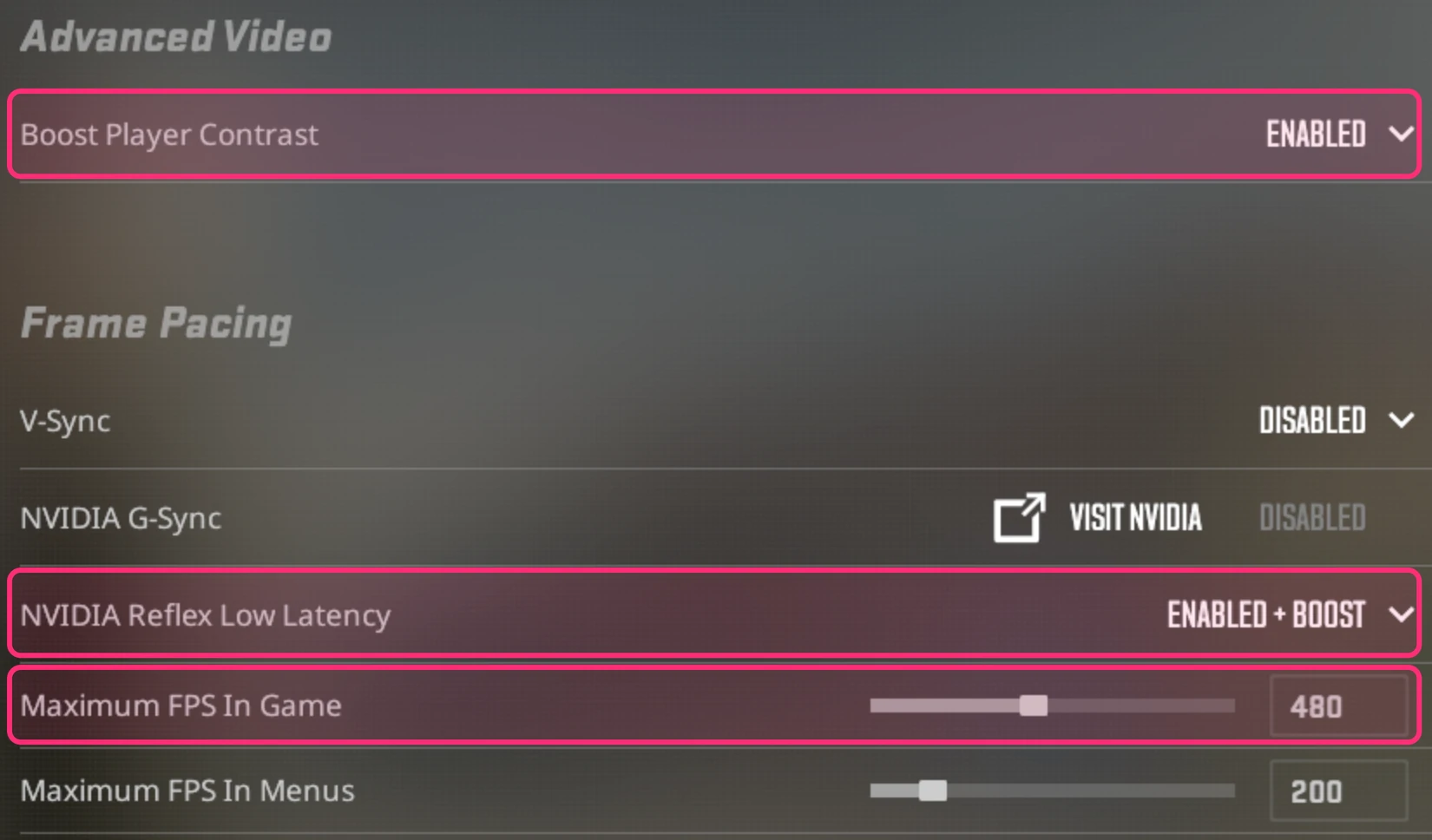
Everything here is in Settings → Video → Advanced Video. Start at the top: turn off Boost Player Contrast, which Valve's own description warns can cost performance. Under Frame Pacing, set NVIDIA Reflex Low Latency to Enabled (or Enabled + Boost) if you have an NVIDIA card, and set Maximum FPS In Game at or above your monitor's refresh rate.
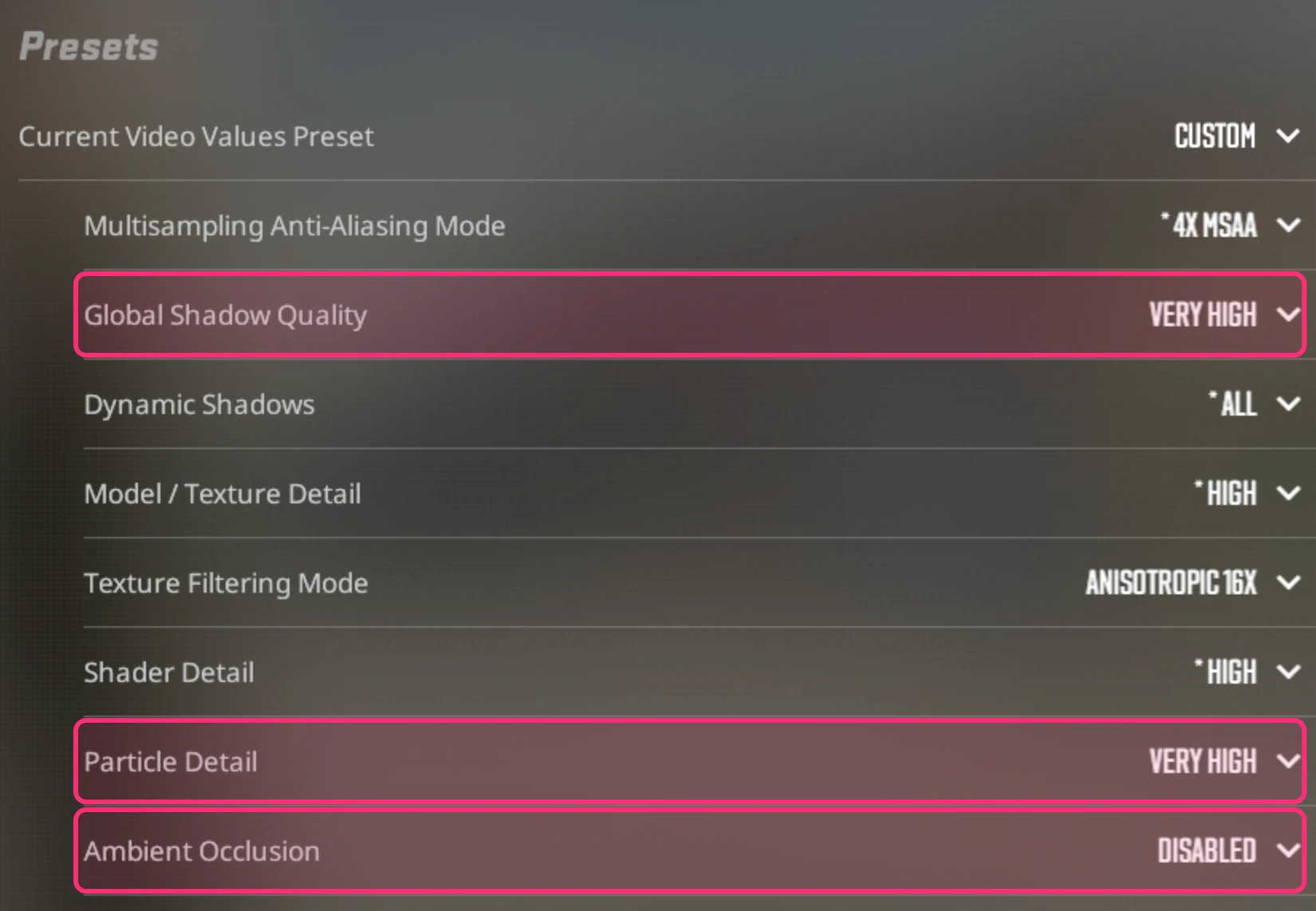
Then work down the Presets. Turn off Ambient Occlusion, which Valve also flags as costly, and lower Global Shadow Quality, Multisampling Anti-Aliasing Mode and Particle Detail. Setting Dynamic Shadows to Sun Only helps too. Or pick a lower Current Video Values Preset to change them all at once.
On a laptop, keep it plugged in. Laptops slow themselves down on battery.
6. Fix the route with Arrive
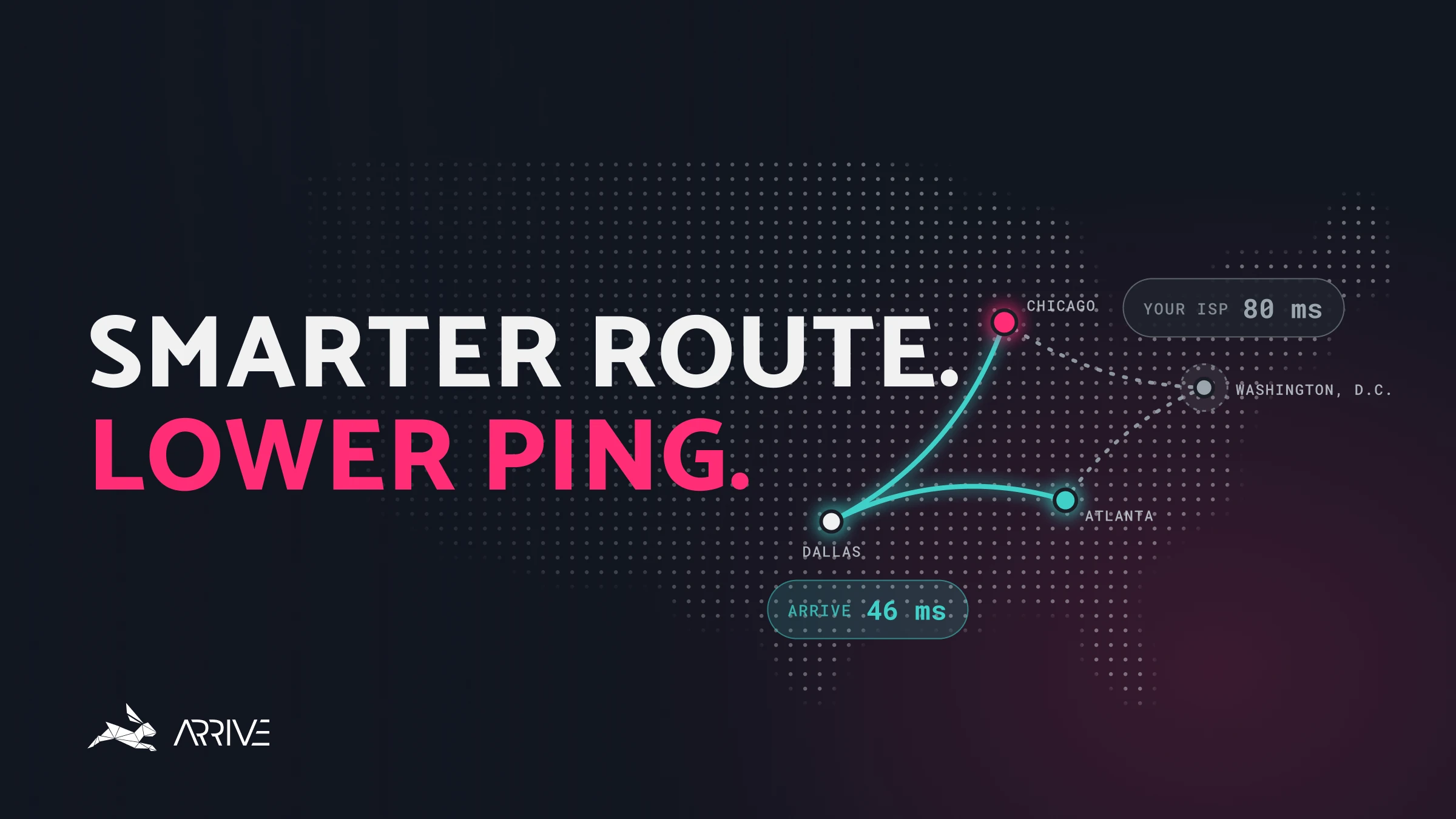
If you're wired in, your missed ticks are near zero and your ping is still higher than it should be, the slow part is probably the route between your provider and Valve's network. Providers choose paths for cost, and they're often not the fastest ones.
That first stretch is what Arrive improves. Arrive is a free Windows app that sends your CS2 traffic through our own network of datacenters to reach Valve's network on a quicker, steadier path. It isn't a VPN, it works on official Valve matchmaking servers, and it currently covers North America and Europe (in alpha).
- Install Arrive and select CS2.
- Switch on Enable CS2 and pick an Arrive server close to you. It's worth trying two or three to find the one that gives you the lowest ping.
- Turn Arrive ON.
- Launch CS2 and set your Max Acceptable Matchmaking Ping as in step 3.
Choose your server before you queue. Changing Arrive servers mid-match moves where your traffic joins Valve's network. That can cause a lag spike, rubber-banding or a brief disconnect, and the match may stay unstable afterwards. Switch only between matches.
Check it with CS2's own numbers. Arrive reads CS2's in-game ping, so its overlay (Ctrl+P) matches your telemetry. Play a Deathmatch with Arrive off and another with it on, and compare ping and missed ticks.
Arrive won't help every connection. If your provider already takes a fast route to Valve, there's nothing for us to improve, and you'll see the same ping. Turn it off and try again in a few months, as our network keeps growing.
CS2 lag FAQ
What is a good ping for CS2?
Under 40 ms is ideal for duels, and most players are comfortable up to about 70 ms. CS2's own telemetry warns you from 100 ms, and Damage Prediction, which plays your hit effects without waiting for the server, switches itself off when your ping is high. A steady ping with no missed ticks matters as much as a low one.
Why do I die behind walls in CS2?
The server decides what happened, and your view is always slightly behind it. The higher your ping, the longer you stay visible to the other player after you've already stepped back. Lowering your ping and fixing missed ticks shrinks that gap.
What does the red network warning in CS2 mean?
Your missed ticks went over your warning threshold, so the game didn't get updates in time because of packet loss or jitter. Check whether the up or down arrow is climbing, then work through step 2.
Can I choose my server in CS2?
Not directly. Official matchmaking has no region picker, but Max Acceptable Matchmaking Ping limits which datacenters you can be placed on. Set it just above your ping to your closest datacenters.
Does a VPN help with CS2 lag?
Rarely. A VPN pushes all of your traffic through an extra server, and that detour usually costs ping. Arrive is built differently: it handles only your game traffic and looks for a faster way into Valve's network. Here's how Arrive and a VPN differ.
Still lagging?
Tell us what your telemetry shows in the Arrive Discord, or read how to use Arrive for a full tour of the app. Playing other games too? Here are the guides for every game Arrive supports.