How to Fix Lag in Dota 2
Most Dota 2 lag comes down to one of three things. Here's how to tell which one you have, and what actually fixes it.
You Blink in, press your ultimate, and for a heartbeat nothing happens. By the time your hero moves, the enemy support has already used their disable. Dota is a game of tiny windows, and lag closes them.
Before you change any settings, find out which kind of lag you have. Each has a different fix, and the table below points you to the right one.
What kind of Dota 2 lag do you have?
| What happens in your games | What it usually is | Start here |
|---|---|---|
| Orders land late, last hits slip away, your Blinks feel slow | High ping | Choose your matchmaking regions |
| Heroes jump around, orders get ignored, you rubber-band back | Packet loss or jitter | Sort out your home network |
| The picture stutters when a big teamfight starts | Low FPS (your PC, not your connection) | Raise your FPS |
- Ping, also called round-trip time (RTT), is how many milliseconds an order takes to reach Valve's server and for the answer to come back.
- Jitter is how much that ping moves around. Dota feels better on a steady 60 ms than on a ping that swings between 30 and 110.
- Packet loss is data that never arrives. The server doesn't see the order you gave, so your hero just stands there.
Dota's server updates the game about 30 times a second, so every tick is roughly 33 ms. With 100 ms of ping, your orders are about three ticks behind the game before you've even reacted.
1. Turn on Dota's network display
Dota 2 can show its own numbers. Go to Settings → Game → Miscellaneous and tick Display Network Information. Your FPS, ping and packet loss, both in and out, appear in the top-right corner of the screen.
Play an Unranked game and keep an eye on them. Valve doesn't publish a target, but players generally treat it like this:
- Ping: under 50 ms is excellent, and up to about 80 ms plays fine. Above 100 ms you'll start noticing it in last hits and disables.
- Packet loss: should stay at 0. Any loss that keeps coming back, in or out, is worth fixing before anything else.
- FPS: at or above your monitor's refresh rate, including in teamfights.
2. Sort out your home network
Most packet loss and lag spikes start inside the house, so check these before you blame the game.
- Use a cable. Wi-Fi drops packets far more often than Ethernet, and Valve's own troubleshooting steps start with a wired test. If a cable can't reach, a powerline adapter can work, though it can pick up interference too.
- Stop the uploads. Cloud backups, game downloads, streams and video calls on any device can push your ping up mid-game. Our article on beating buffer bloat explains why uploads hurt the most.
- Restart your modem and router, then try again.
- Close your VPN. It adds an extra stop between you and the server.
If packet loss keeps coming back after that, look at Network Quality in the same Miscellaneous settings. I have a Low-end Network trades a little extra latency for smoother play when packets go missing. It hides the loss rather than fixing it, so leave it on I have a High-end Network once your connection is steady.
If your lag only shows up in the evenings, Steam's support notes that your internet provider may be managing traffic at busy times. That's a route problem, which step 5 covers.
3. Choose your matchmaking regions
Open Play Dota and click Region, just above Find Match. It reads Region: Auto until you change it. That opens Select Matchmaking Regions. It lists every region with your current ping to it, and Refresh Pings measures them again.
By default Dota picks a region for you based on your location. Untick Automatically pick the best region and choose up to three regions yourself. More regions mean faster queues, and also more chances of landing on a server far from you. If ping matters to you, tick only the one or two with the lowest numbers.
| Region | Where the servers are |
|---|---|
| US East | Sterling, Virginia |
| US West | Seattle |
| Europe West | Western Europe |
| Europe East | Vienna |
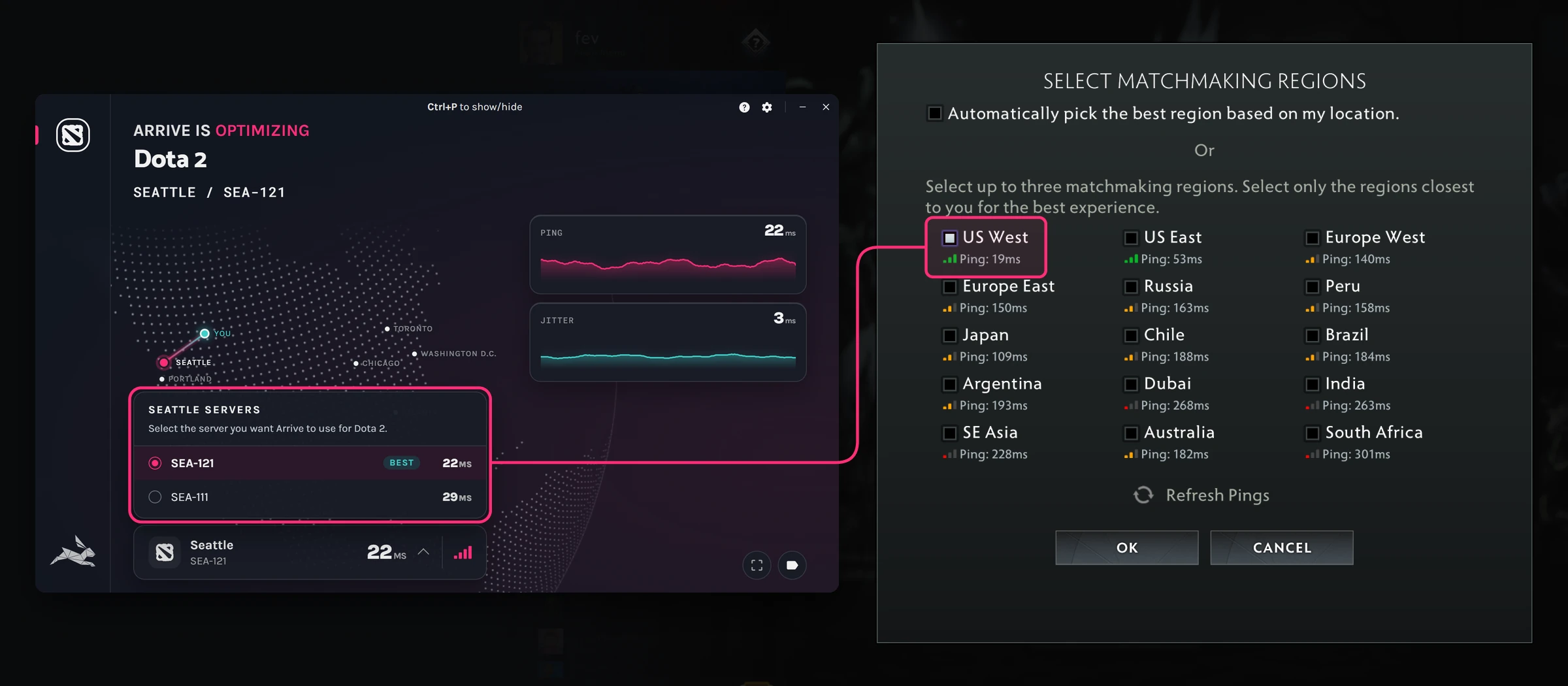
You don't connect to the match server directly. Valve carries Dota traffic over its own relay network, the Steam Datagram Relay (SDR): your connection enters Valve's network at a relay near you, and Valve takes it the rest of the way. The part you can affect is the stretch between your PC and that relay.
- Your PCYour internet provider carries you to the first stop
- Arrive server If you use ArriveTakes the quickest path it knows from here
- Valve’s relayWhere your traffic joins Valve’s network
- Dota 2 serverIn your matchmaking region, where the match runs
4. Raise your FPS for teamfights
Low FPS feels like lag, but no amount of network fixing will help it. It usually shows up when five heroes cast at once.
- Go to Settings → Video → Rendering and choose Use advanced settings, so you can turn options off one by one.
- Untick High Quality Water and Ambient Occlusion first. They're among the most expensive options for very little gain. Then lower Shadow Quality (it goes down to Off), Effects Quality and Anti-Aliasing.
- Keep Compute Shaders ticked. On most setups it makes the game run faster, not slower.
- Set Maximum frames per second allowed to at least your monitor's refresh rate.
- Under Video → Options, try both Rendering API choices, Direct3D 11 and Vulkan. Which runs faster depends on your hardware, so play a game on each.
- On an NVIDIA card, set NVIDIA Reflex Low Latency to Enabled.
- On a laptop, play plugged in. Laptops slow down on battery.
5. Fix the route with Arrive
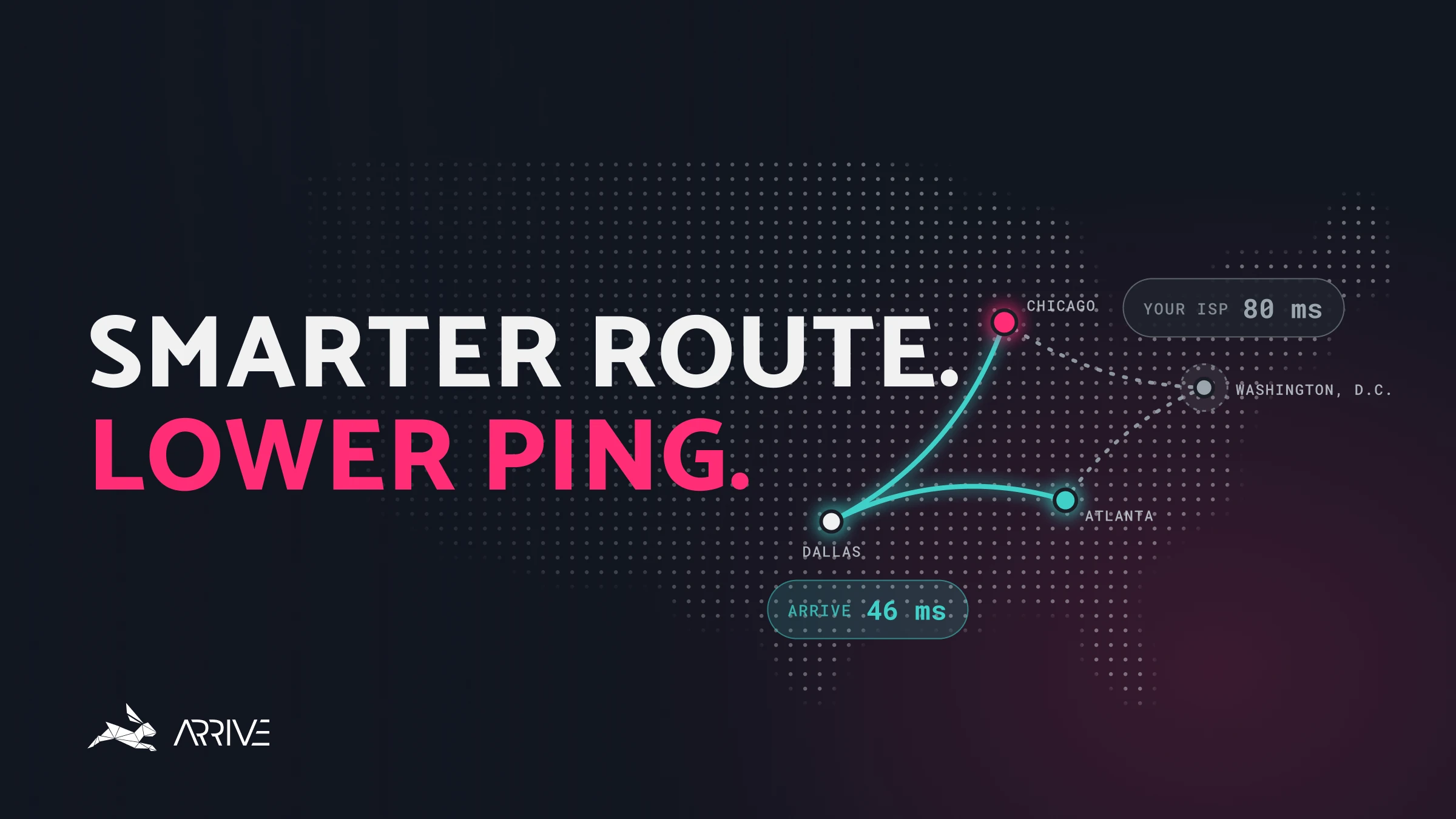
If you're wired, queueing your closest region, and your ping is still higher than it should be, the slow part is probably the route between your internet provider and Valve's network. Providers pick the paths that suit their costs, and those are often not the quickest ones.
That's the part Arrive works on. It's a free Windows app that sends your Dota 2 traffic through our own network of datacenters to find a quicker, steadier path. It isn't a VPN, and it currently covers North America and Europe (in alpha).
- Install Arrive and select Dota 2.
- Switch on Enable Dota 2 and pick the Arrive server nearest the region you queue for: Washington, D.C. for US East, Seattle for US West, Frankfurt or Amsterdam for Europe.
- Turn Arrive ON.
- Launch Dota 2 and, in Select Matchmaking Regions, tick only that matching region.
Pick your server before you queue. Switching Arrive servers during a match changes where your traffic joins Valve's network, which can cause a lag spike or a disconnect and leave the rest of the match unstable. Change servers between games.
Compare it yourself. For Dota 2, Arrive reads the game's own ping, so the number in Arrive's overlay (Ctrl+P) matches what Dota shows. Play one Unranked game with Arrive off and one with it on, and compare ping and packet loss in Dota's network display.
Arrive won't help every connection. If your provider already has a good route to Valve, there's nothing for us to improve, and you'll see no change. Turn it off and check back later: we keep adding to our network.
Dota 2 lag FAQ
What is a good ping for Dota 2?
Under 50 ms is excellent, and under 80 ms is comfortable for most heroes. Steadiness matters too: watch for jitter and packet loss, not just the average.
Why is my ping high on only one region?
Your route to that region is the slow one. Your connection is fine for other regions, so it isn't your PC or your Wi-Fi. Queue a closer region, or try a route optimizer like Arrive for that path.
Why do I get lag spikes only in teamfights?
If the network numbers stay steady while the fight happens, it's your FPS dropping, not your connection. Lower the video settings in step 4. If ping or packet loss jumps at the same moment, it's the network.
What does "Unable to ping any region" mean?
Dota can't reach Valve's network at all. Something is usually blocking it: a firewall, antivirus or a router setting. Restart your router, allow Dota 2 and Steam through your firewall, and try again.
Does a VPN lower Dota 2 ping?
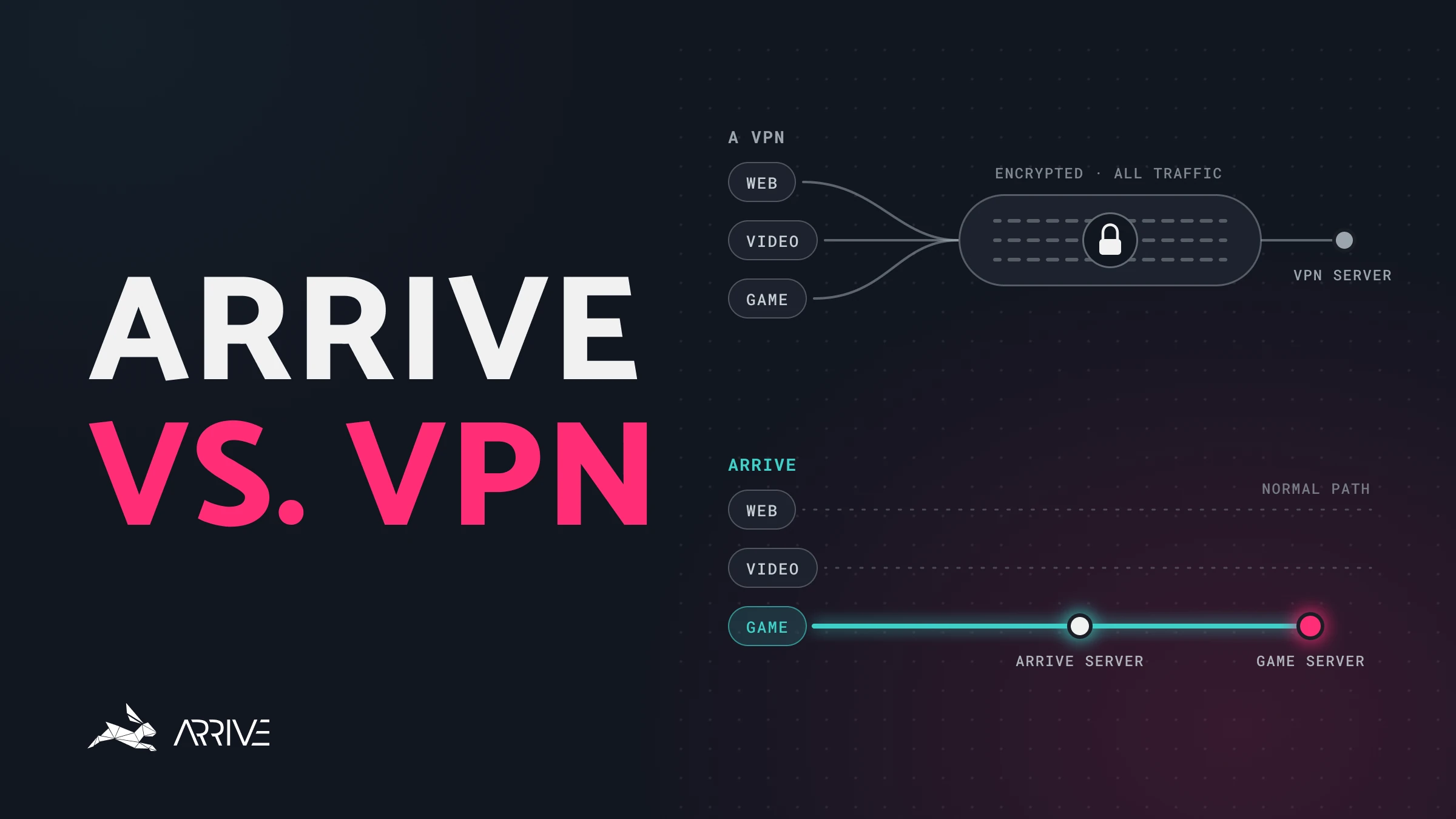
Rarely. A VPN wraps up everything your PC sends and detours it through one more server, and that extra distance usually shows up as extra ping. Arrive works differently: it moves only your Dota 2 traffic onto a quicker path and leaves the rest of your connection alone. Read how Arrive and a VPN differ, and switch your VPN off while you play.
Still lagging?
Tell us what you're seeing in the Arrive Discord, or read how to use Arrive for a walkthrough of the app. Playing something else too? We have guides for the other games Arrive supports.