How to Fix Lag in Valorant
Peeked before you could react, or rubber-banding mid-round? Find out whether it's ping, packet loss or FPS, and fix the one you actually have.
You hold the angle, they swing, and you're dead before they even show up on your screen. In a game where rounds are decided in a few milliseconds, lag loses fights that your aim would have won.
"Lag" in Valorant is really three different problems, and each one has a different fix. Spend two minutes finding out which one you have before you change anything.
Why is Valorant lagging?
| What you notice | Likely cause | Go to |
|---|---|---|
| Everything feels a beat late, and enemies seem to see you first | High ping (latency) | Pick the right server |
| Rubber-banding, players teleporting, shots that don't register, sudden spikes | Packet loss or jitter | Fix your home network |
| A choppy picture, or stutter when abilities go off | Low FPS (your PC, not your internet) | Valorant settings |
- Ping (Valorant calls it Network RTT) is how long your data takes to reach the game server and come back, in milliseconds.
- Jitter is how much that ping jumps around from moment to moment. A steady 50 ms plays better than a ping that bounces between 20 and 120.
- Packet loss is the share of your data that never arrives. When it's lost, the server never hears that you moved or fired.
1. Check your numbers in Valorant
Open Settings → Video → Stats and set these to Text Only (or Both if you like graphs):
- Client FPS
- Network RTT Avg / Max
- Network RTT Jitter
- Packet Loss
Then play a Deathmatch and watch them. As a rough guide:
- Ping: under 40 ms feels great, and up to about 80 ms is fine. Past 100 ms you're giving up peeker's advantage in every duel.
- Packet loss: it should sit at 0%. If it keeps showing 1% or more, that's your problem.
- FPS: at or above your monitor's refresh rate, without big dips in fights.
Valorant also shows warning icons on screen when something is off. If the one you see is Low Server FPS, that's on Riot's side and there is nothing for you to fix.
2. Fix your home network
Most packet loss and lag spikes start inside your own home, so start there.
- Plug in an Ethernet cable. Wi-Fi is the most common cause of lost packets and ping spikes. If a cable can't reach, a powerline adapter is the next best thing. If you have to stay on Wi-Fi, use the 5 GHz band and sit close to the router.
- Pause the bandwidth hogs. Downloads, cloud backups and video calls on any device in the house can spike your ping, uploads most of all. Our guide to beating buffer bloat explains why.
- Restart your modem and router. It takes a minute and clears up more problems than it should.
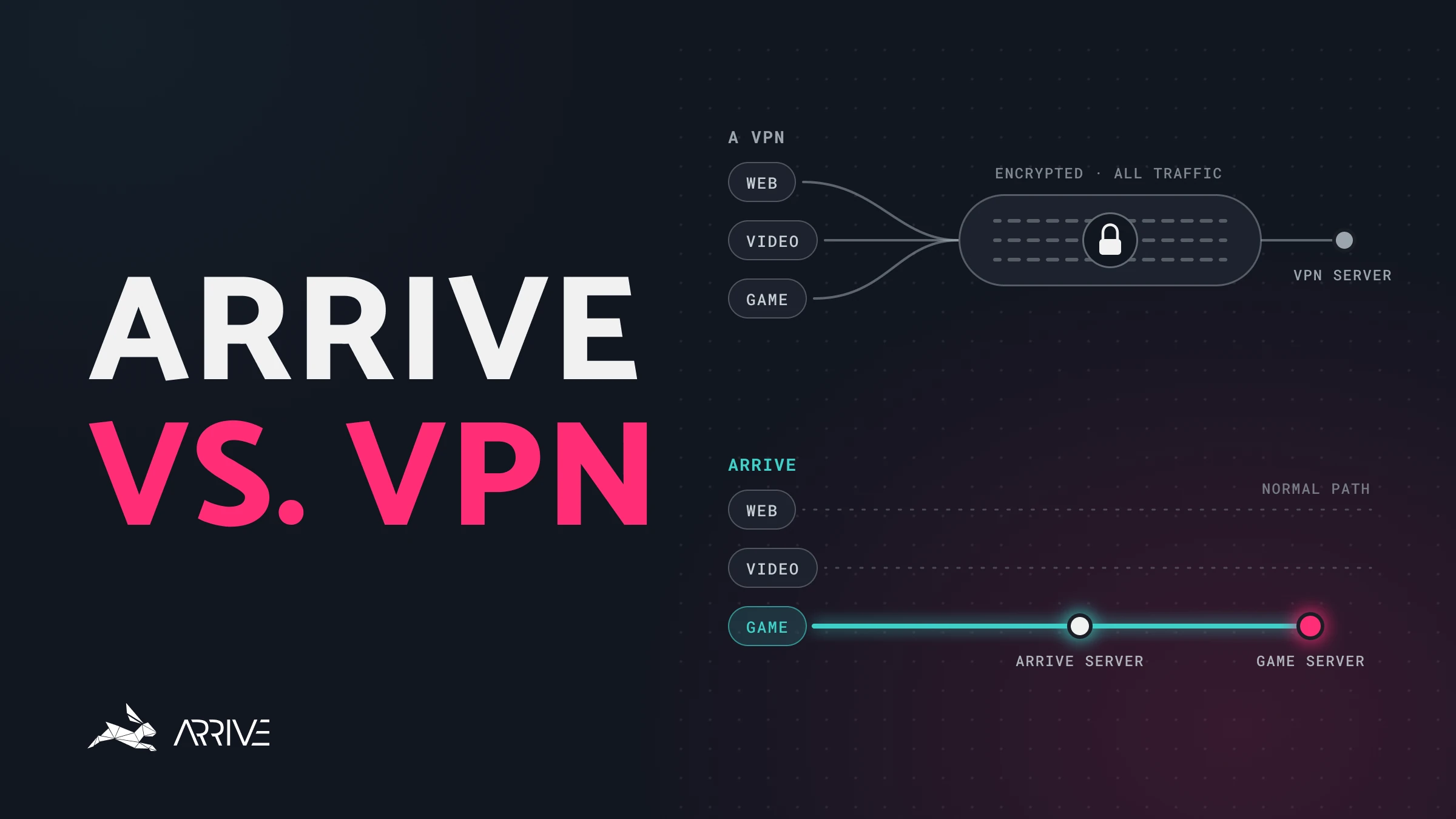
- Turn off your VPN. A VPN almost always adds distance, and distance is ping.
3. Pick the right Valorant server
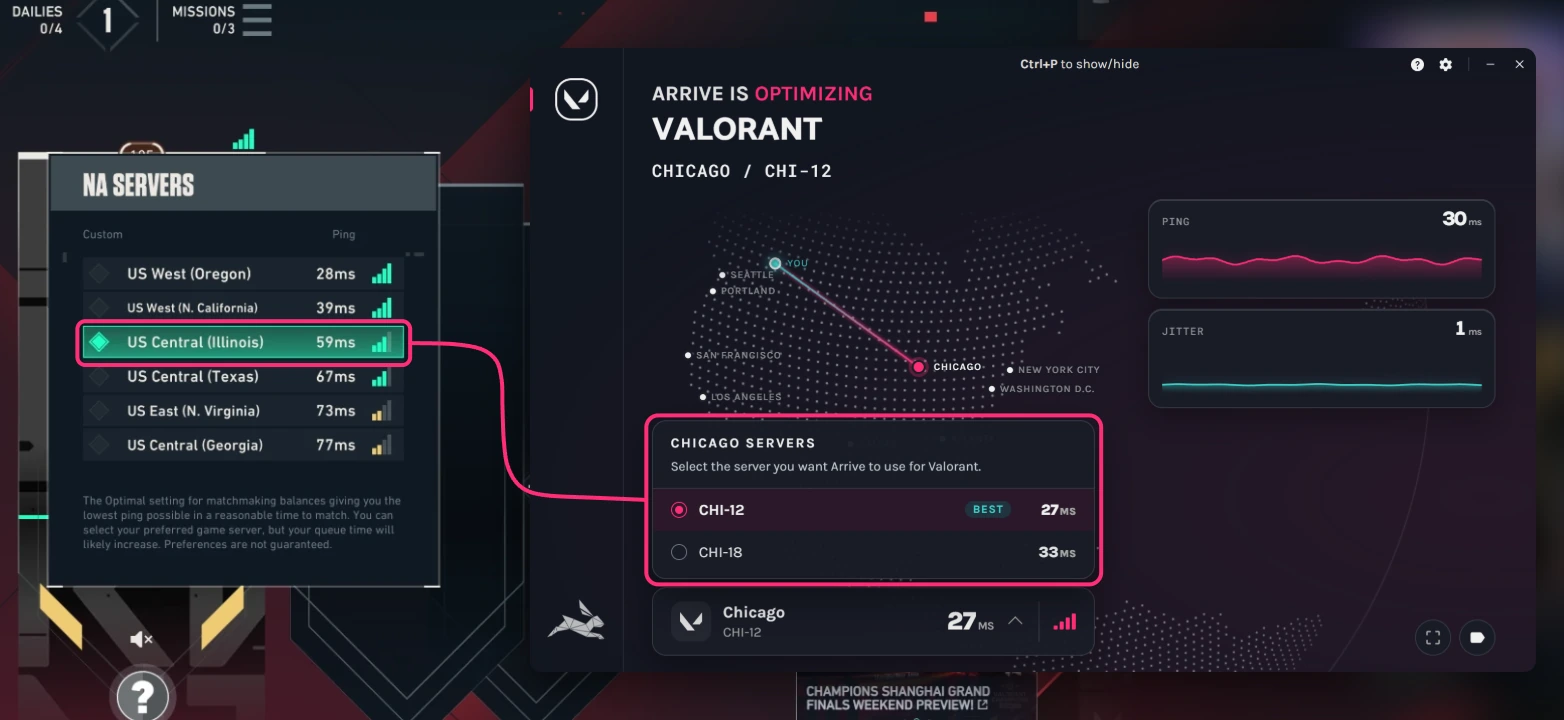
In the lobby, click the ping bars above your player card to open the server list. It shows your ping to every server in your region. You can change it when you're solo or the party leader.
By default Valorant balances low ping against a short queue, so it can place you on a server that is further away. Select only the one or two servers with your lowest ping. Queues may take a little longer, and your games will feel better.
4. Change these Valorant settings
If your FPS is low, go to Settings → Video → Graphics Quality:
- Set Material, Texture, Detail and UI Quality to Low.
- Turn off Improve Clarity, Bloom, Distortion and Cast Shadows.
- Close browsers, launchers and recording apps you don't need, and update your graphics driver.
- On a laptop, plug in the charger and set Windows to its best performance power mode. Laptops slow themselves down on battery.
If you have packet loss, try Settings → General → Other → Network Buffering. Leave it on Minimum when your connection is steady. Moderate smooths out other players' movement when packets go missing, at the cost of a small extra delay. It hides the symptom and doesn't fix the cause, so go back to step 2 as well.
5. Fix the route with Arrive
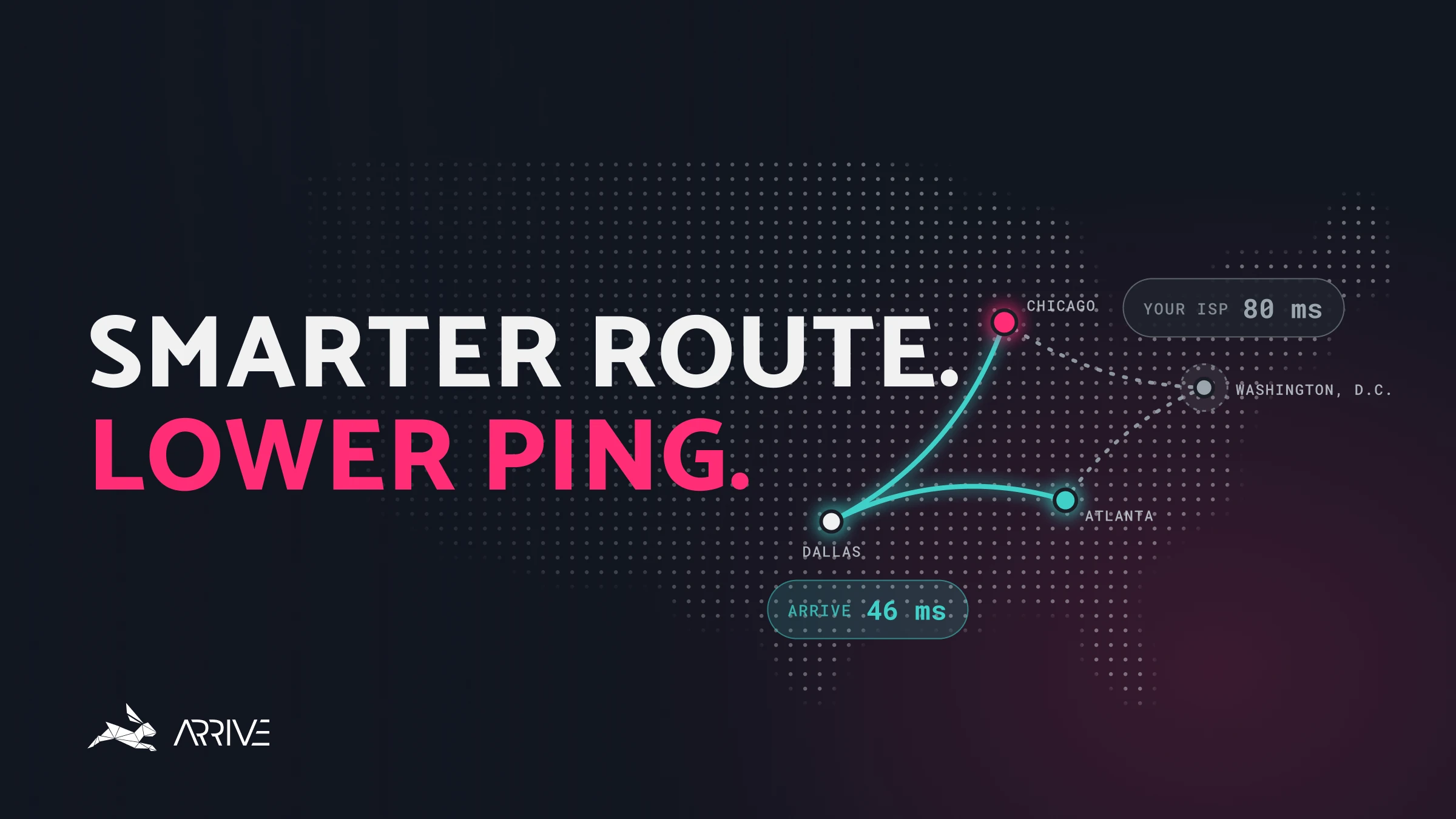
If you're wired in, on your closest server, and your ping is still high or spiky, what's left is the part you can't reach from a settings menu: the path your data takes between your internet provider and Riot's servers. Providers pick routes that are cheap for them, and those are often not the fastest ones.
That path is what Arrive works on. Arrive is a free Windows app that sends your Valorant traffic through our own network of datacenters and looks for a quicker, steadier way in. It isn't a VPN, and it currently covers North America and Europe (in alpha).
- Install Arrive and select Valorant.
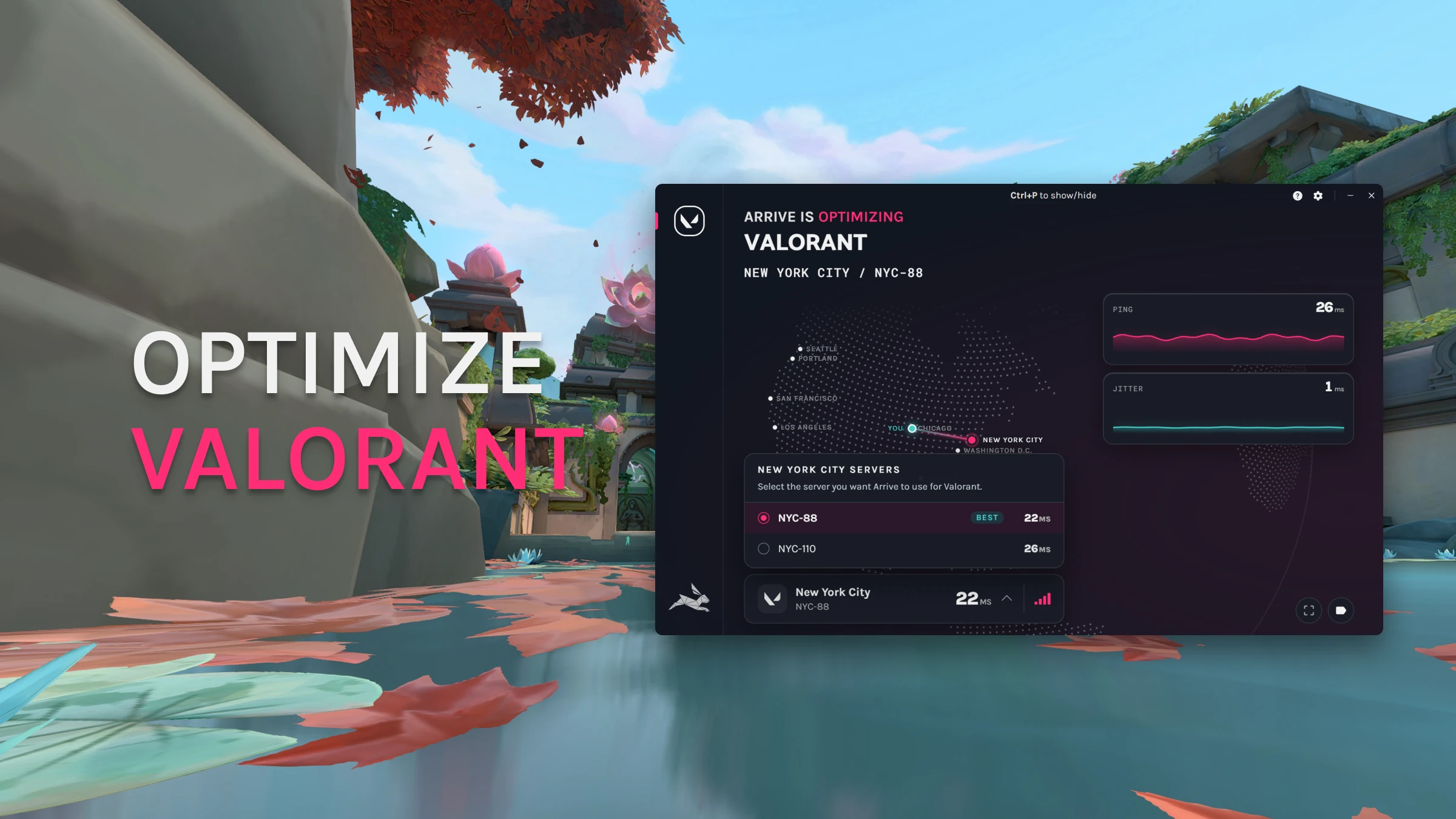
- Switch on Enable Valorant and pick the Arrive server closest to the Valorant server you play on. If you play on US Central (Illinois), choose a Chicago server.
- Turn Arrive ON.
- Launch Valorant and select that same server in its server list.
Test it honestly. Play a Deathmatch with Arrive off and another with it on, and compare Network RTT and Packet Loss in Valorant's own stats. Arrive's overlay (Ctrl+P) shows the ping to our servers, which won't exactly match the in-game number.
Arrive won't help everyone. If your provider's route to Riot is already good, there is nothing for us to improve. If your ping doesn't drop, turn Arrive off and try again in a few months. Our network keeps growing.
Valorant lag FAQ
What is a good ping for Valorant?
Under 40 ms is excellent and under 80 ms is comfortable. A steady ping matters as much as a low one, so watch jitter and packet loss too.
Why am I lagging in Valorant with good internet?
Internet speed and latency are different things. Valorant uses very little bandwidth, so a 1 Gbps plan doesn't help if your Wi-Fi drops packets or your provider sends your traffic the long way round. Check packet loss and ping, not download speed.
How do I get better latency in Valorant?
In order of what usually helps most: play on a wired connection, select only your lowest-ping server, stop other devices from uploading while you play, then try a route optimizer like Arrive for the stretch between your provider and Riot.
Why did my Valorant ping suddenly get high?
Something changed. The usual suspects are someone else using the connection, a switch from cable to Wi-Fi, Valorant placing you on a different server, or your provider's route getting busy in the evening. Step 1 tells you which.
Does a VPN reduce lag in Valorant?
Rarely. A VPN adds an extra stop and encrypts everything, which usually raises ping. Arrive is not a VPN: it only carries your game traffic. Don't run the two together.
Still lagging?
Tell us what you're seeing in the Arrive Discord, or read how to use Arrive for a full walkthrough of the app. Playing something else too? We have guides for the other games Arrive supports.